










If you have already deployed OpenClaw on Tencent Cloud's Lightweight Application Server, you can now further integrate it with WeChat to directly chat with ClawBot through WeChat. This article reorganizes the entire process into a clearer operational guide to facilitate your subsequent image layout and formatting.
1. What can this article help you accomplish?
This article primarily addresses one issue:How to quickly integrate the OpenClaw, which is already deployed on Tencent Cloud's Lightweight Application Server, into WeChat for use.
Once completed, you can directly chat with your ClawBot in WeChat, using it as a more natural and higher-frequency interaction entry point.
2. What needs to be prepared before access?
Before we officially begin, first confirm that the following conditions have been met:
2.1. Completed OpenClaw deployment
If you haven't deployed your own OpenClaw yet, it is recommended to first complete instance creation and application deployment in Tencent Cloud's Lightweight Application Server. Before connecting to WeChat, the OpenClaw itself must be up and running.
2.2. Using WeChat version iOS
One of the prerequisites for connecting to WeChat is that you need to use the WeChat App on an iOS device。
2.3. WeChat version meets requirements
The WeChat version needs to be upgraded to 8.0.70 or above,otherwise it may not be possible to complete the scan connection normally.
2.4. OpenClaw is the available version
If your cloud OpenClaw version is outdated, it is recommended to first upgrade to the currently supported version for WeChat integration before proceeding with the configuration steps below.
3. Start integrating with WeChat
Now proceed to the formal operation process.
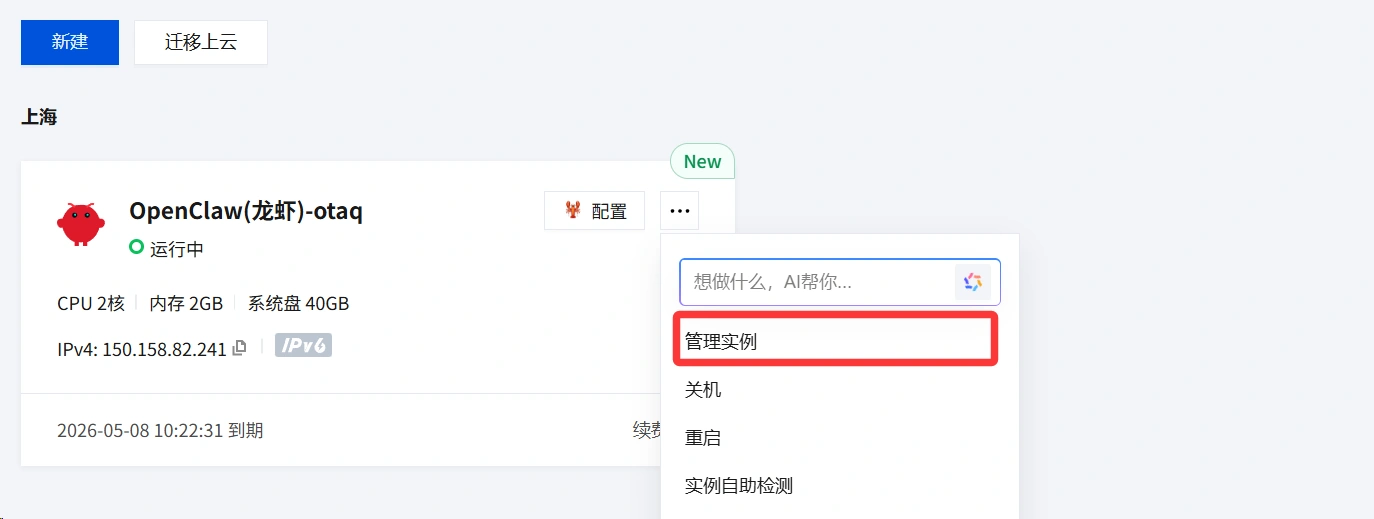
Step 1: Go to the instance management page
Log in to the Tencent Cloud Lighthouse console, locate the OpenClaw instance you want to connect to WeChat, and enter the configuration or application management page for that instance.
Step 2: Find the channel configuration
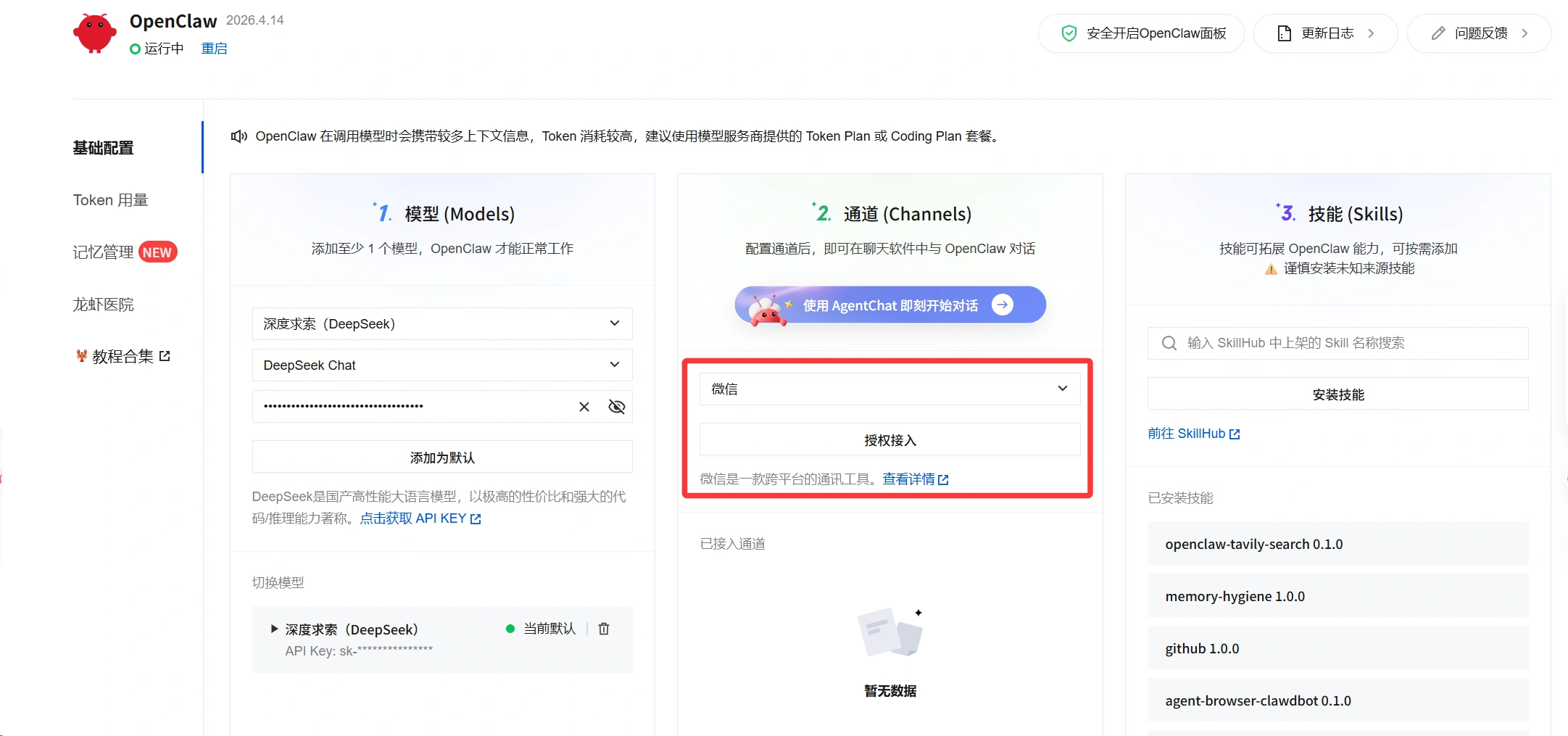
In the configuration panel of OpenClaw, locate the “channel” related settings.
Select from the list of accessible platforms WeChat,then click Go to Authorize。
Step 3: Obtain WeChat authorization QR code
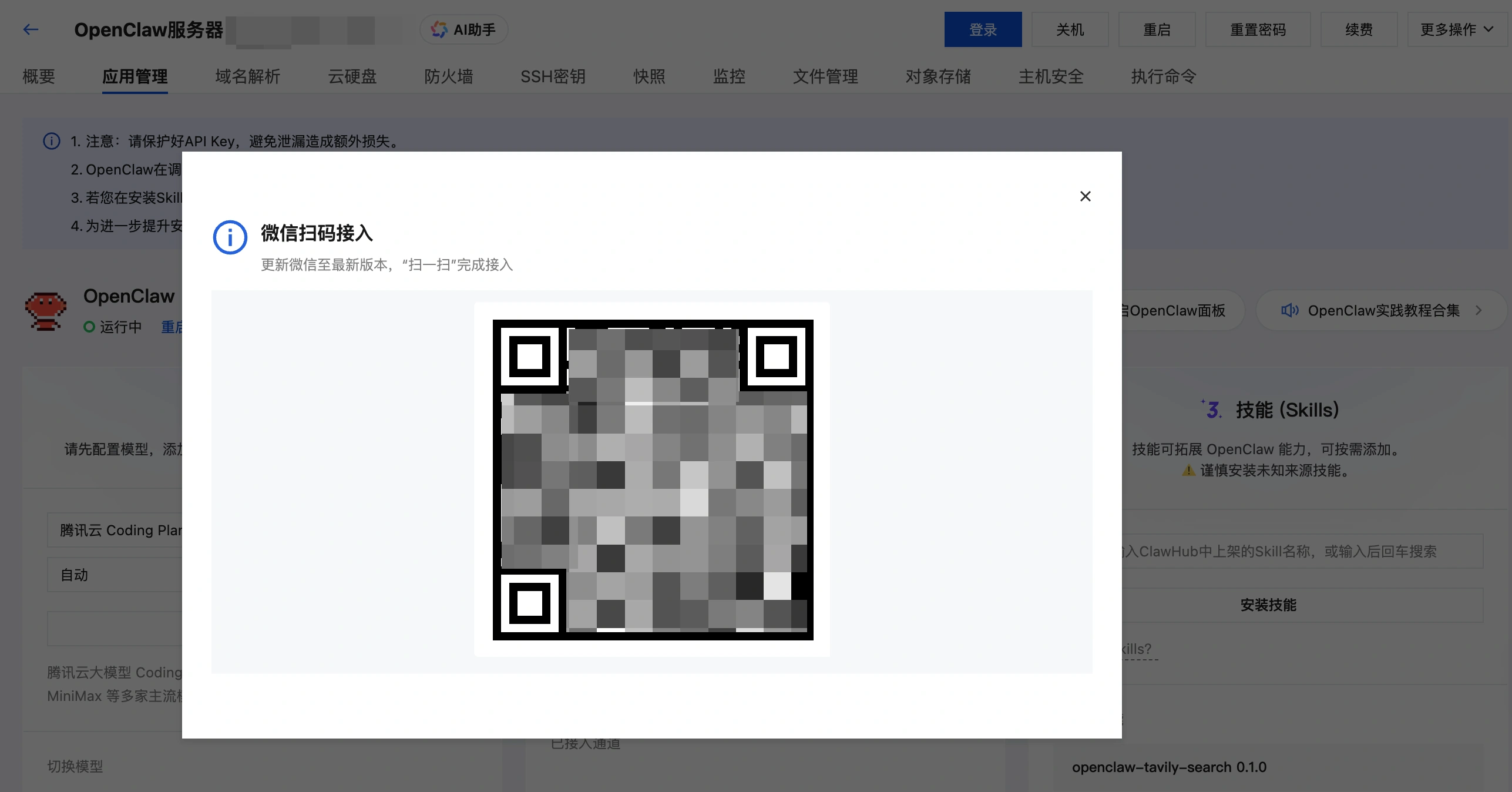
The system will pop up a WeChat scan code access window. After a short wait, an authorization QR code will be generated in the window.
Step 4: Use WeChat to scan the code
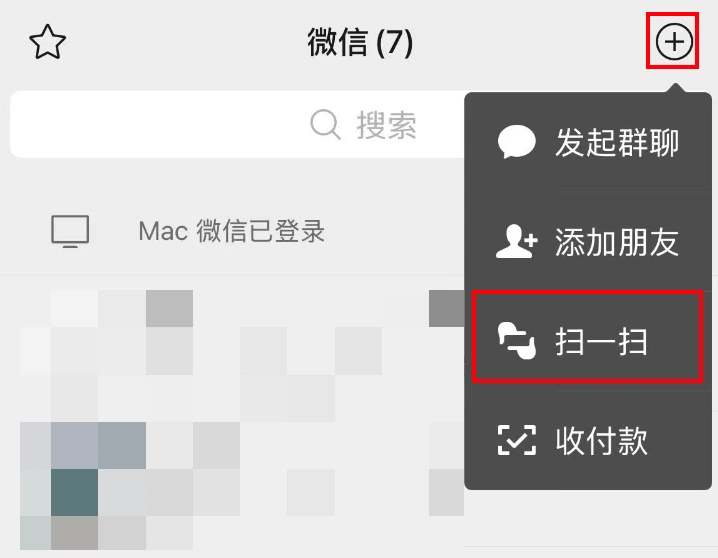
Open WeChat on your phone, use “Scan” to scan the QR code that just appeared, and follow the on-screen instructions to complete the connection process.
Step 5: Enter the conversation
After scanning the code and completing the addition, you will be taken directly to the conversation page of WeChat ClawBot. At this point, the WeChat integration is basically complete, and you can start chatting with the bot.

4. Don't skip this step: Configure the model API Key
WeChat channel access is complete, but it doesn't mean the bot already has full capabilities.
To make OpenClaw truly able to understand and process messages, you still need to configure an availablemodel API KeyThis step can be completed on the application management page of Tencent Cloud Lightweight Application Server. The original text clearly marks it as a “mandatory step.”
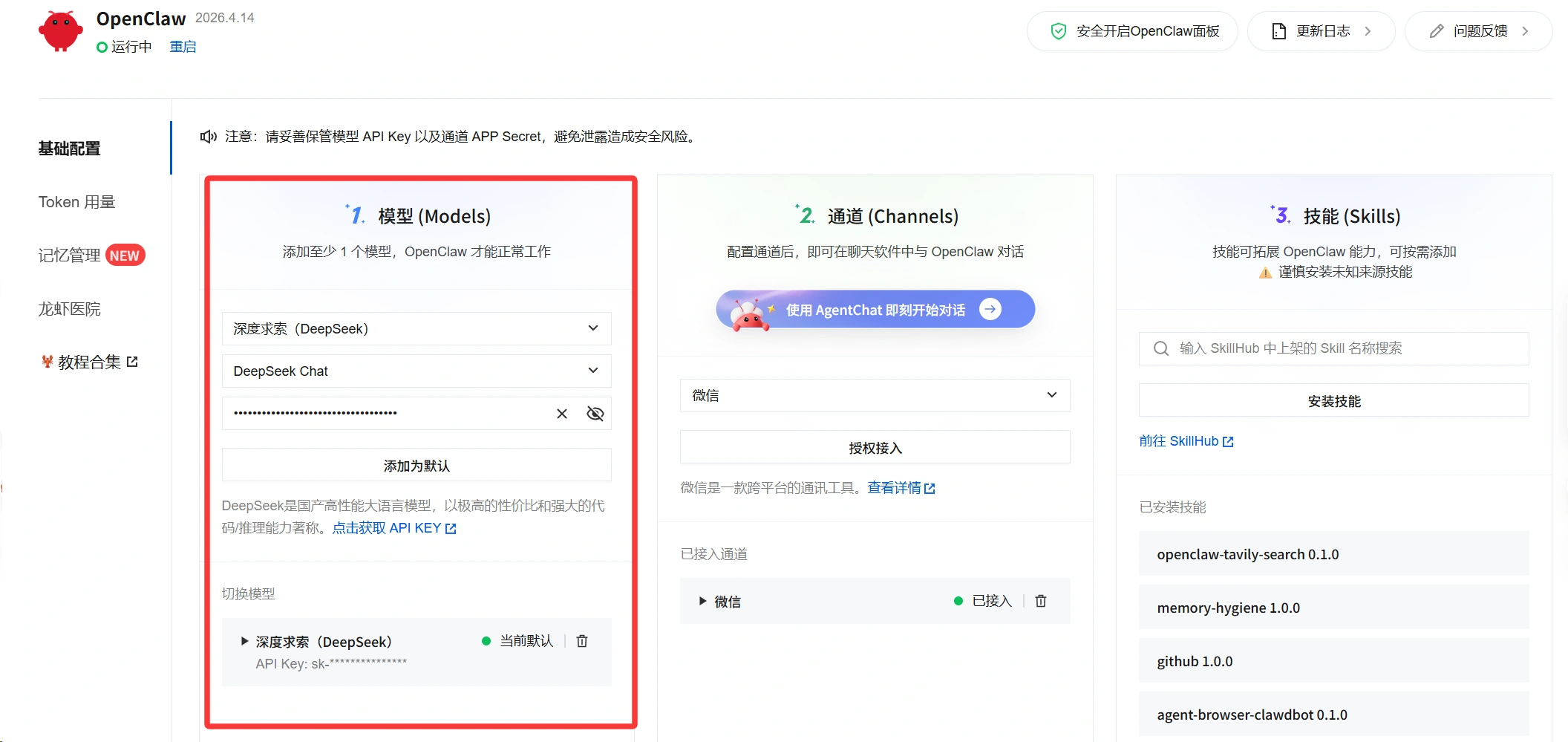
That is to say:
- WeChat accessSolves the problem of “where messages come in”
- Model ConfigurationSolves the problem of “how the bot understands and replies”
Only when both parts are completed is the entire chain truly connected.
5. What message types are currently supported
After connecting to WeChat, WeChat ClawBot already supports various message interaction forms, including:
- Receive text messages
- Receive images and videos
- Receive files
- Reply to text messages
- Reply to images and videos
- Reply file
- Actively send message
- Receive voice messages
But one thing to note:
“Supports receiving” does not mean “the model can definitely handle it.”
For instance, capabilities such as image recognition, file parsing, and multimodal understanding still depend on whether the specific model you have integrated possesses the corresponding abilities. In other words, the WeChat channel is responsible for providing the entry point, while the actual task processing capability is determined by the model itself.
6. Frequently Asked Questions
If you encounter issues such as authorization failure, QR code abnormalities, or unresponsive messages during the integration process, you can first check the following items:
- Is it using iOS WeChat?
- Is the WeChat version up to requirements
- Has OpenClaw been deployed and is running normally
- Is the model API Key correctly configured
- Is the current instance a version that supports WeChat integration
7. Summary
After connecting OpenClaw to WeChat, you gain an AI entry point that aligns more closely with daily usage habits. Compared to using it separately on a console or webpage, the interaction barrier in the WeChat scenario is lower, making it more convenient to quickly validate results in real business or personal use.
The entire process is not complicated, the core is just four things:
- First deploy OpenClaw
- Ensure WeChat environment meets requirements
- Complete WeChat authorisation in the console
- Complete model API key configuration
After completing these steps, you can start chatting directly with your ClawBot on WeChat.
 English (UK)
  Acehnese
  Afrikaans
  Shqip
Shqip  Հայերեն
  অসমীয়া
  Aymara
  Azərbaycan dili
  Bashkir
  Euskara
  Беларуская мова
  বাংলা
বাংলা  Bhojpuri
  Bosanski
  Български
  Català
  Cebuano
  Hrvatski
  Čeština
  Dansk
Dansk  Dari
Dari  Nederlands
  Esperanto
  Eesti
Eesti  Suomi
Suomi  Français du Canada
  Galego
  ქართული
  Ελληνικά
  Guarani
  ગુજરાતી
  Haitian Creole
  Hausa
Hausa  עִבְרִית
  हिन्दी
  Magyar
  Igbo
Igbo  Bahasa Indonesia
  Italiano
  Basa Jawa
  Kapampangan
  Қазақ тілі
  Konkani
  Kurdish (Kurmanji)
  كوردی
كوردی  Кыргызча
  Latviešu valoda
  Lingala
  Lietuvių kalba
  Lombard
  Македонски јазик
  Maithili
  Malagasy
  Bahasa Melayu
  मराठी
मराठी  Монгол
  العربية المغربية
  ဗမာစာ
ဗမာစာ  नेपाली
  Pangasinan
  پښتو
پښتو  فارسی
فارسی  (فارسی (افغانستان
  Polski
  Português do Brasil
  Português
  Quechua
  Română
  Српски језик
  Sicilian
  Slovenčina
  Slovenščina
  گؤنئی آذربایجان
  Español de México
  Sundanese
  Kiswahili
  Svenska
  Tagalog
  Tajik
Tajik  தமிழ்
தமிழ்  Татар теле
  తెలుగు
  ไทย
ไทย  Tsonga
  Tswana
  Türkçe
  Turkmen
  Українська
  اردو
اردو  O‘zbekcha
  Tiếng Việt
  Wolof
Wolof  Xhosa
Xhosa  English (Australia)
  English (Canada)
  English (New Zealand)
  English (South Africa)
  Aragonés
  Nederlands (België)
  Breton
  አማርኛ
አማርኛ  ភាសាខ្មែរ
  മലയാളം
  هزاره گی
  Maori
Maori  Hornjoserbšćina
  ئۇيغۇرچە
  བོད་ཡིག
  தமிழ்
தமிழ்  Reo Tahiti
  Español de Venezuela
  Español de Uruguay
  Español de Puerto Rico
  Español de Perú
  Español de Ecuador
  Español de Costa Rica
  Maltese
  Íslenska
  Friulian
  ಕನ್ನಡ
ಕನ್ನಡ  Frysk
Frysk  Luxembourgish
  ພາສາລາວ
  Latin
Latin  Norsk bokmål
  རྫོང་ཁ
  Сахалыы
  Deutsch (Österreich)
  Taqbaylit
  Norsk nynorsk
  Occitan
  ਪੰਜਾਬੀ
  Português de Angola
  Gàidhlig
  Português (AO90)
  Irish
Irish  Sanskrit
  سرائیکی
  سنڌي
سنڌي  Dolnoserbšćina
  Ruáinga
  Español de Argentina
  Español de Chile
  Deutsch (Schweiz, Du)
  Ślōnskŏ gŏdka
  සිංහල
සිංහල  Español de República Dominicana
  Español de Guatemala
  Français de Belgique
  Español de Colombia
  Cymraeg