









Already on Tencent Cloud Lighthouse Lightweight Application Server Users deployed on OpenClaw want to upgrade to the latest version while retaining important data (such as memories, skills, etc.).
1. Why update OpenClaw?
OpenClaw is currently in a phase of rapid iteration, continuously releasing new features, fixing issues, and optimizing plugin support and IM channel integration experience. Older versions may lack these improvements, so it is recommended to upgrade to the latest version promptly.
2. Important preparations before updating
2.1 Confirm deployment environment
Ensure that OpenClaw is running normally and can access the corresponding instance through the Lighthouse console.
2.2 Determine if an update is needed
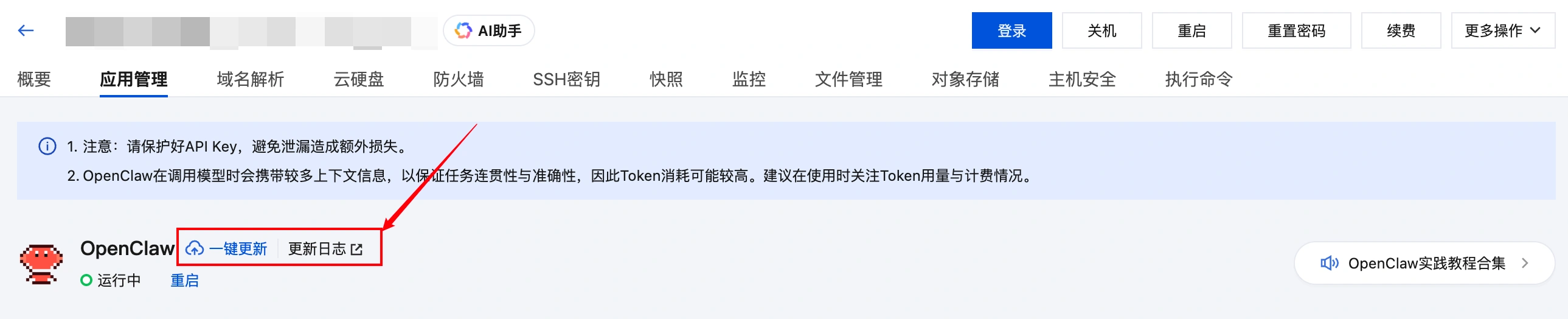
- 在 OpenClaw Application Management Panel Check if it appears One-Click Update Button。
👉 If it appears, it means it can be updated currently.
3. Two Ways to Update OpenClaw
Currently, you can update OpenClaw in the following two ways:
Method 1: One-click update (recommended)
This is the simplest and safest way to update, allowing you to upgrade without reinstalling the system.
Steps are as follows:
- log in Lighthouse Console → Go to the OpenClaw instance details.
- Find in the admin interface “One-click update” Button.
- Click update and confirm the prompt popup.
⚠️ Note: The update process may take 5–10 minutes。 - Wait for the update to complete automatically and refresh the interface.
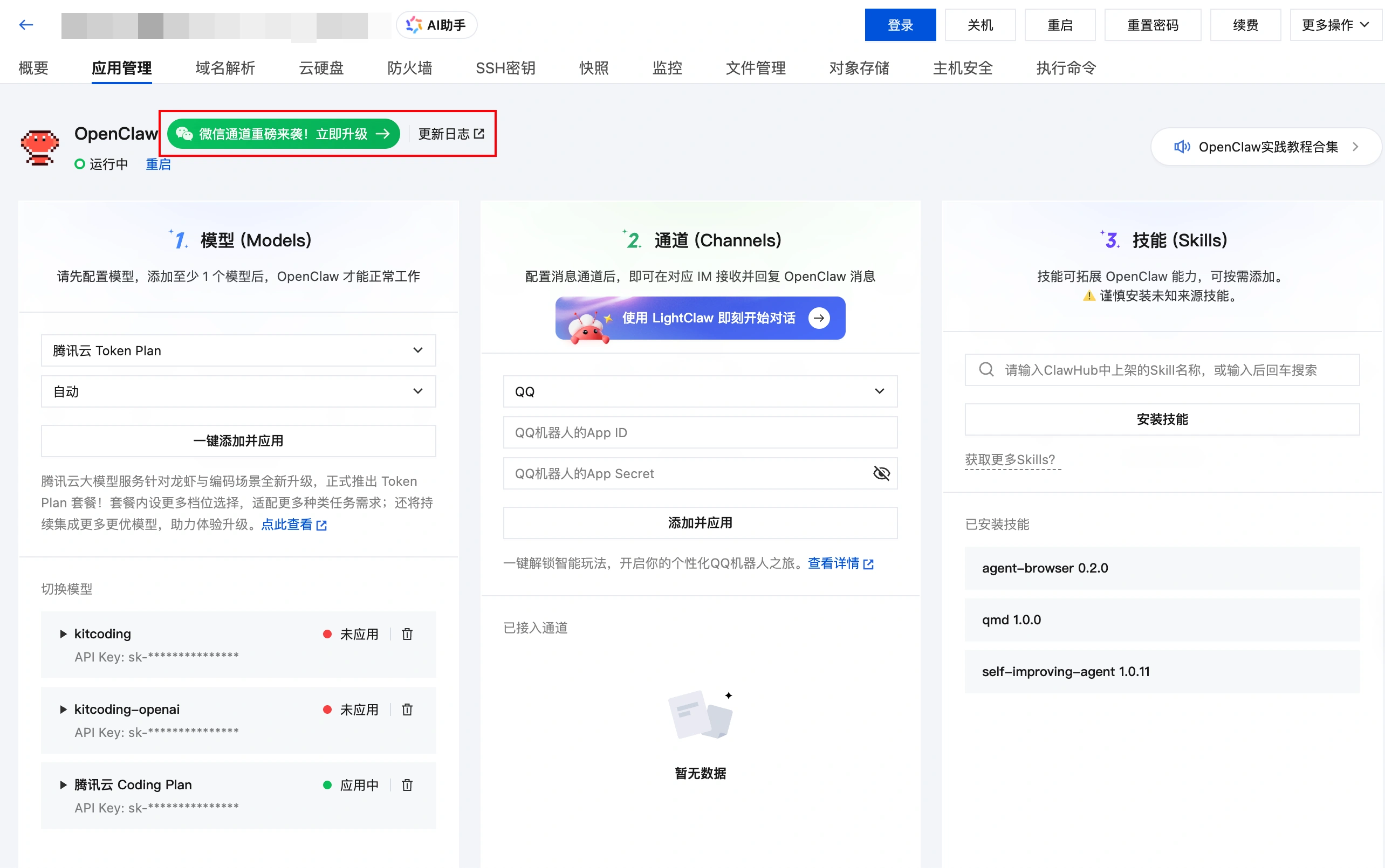
❗After update Channel configurations will be cleared,but models, skills, and memories will not be lost.
👉 After the update is complete reconfigure channel connections (such as WeChat Work, QQ, etc.)。
take note of
If the one-click update fails multiple times, it is recommended to refer to the “Manual Update” method described later to complete the update.
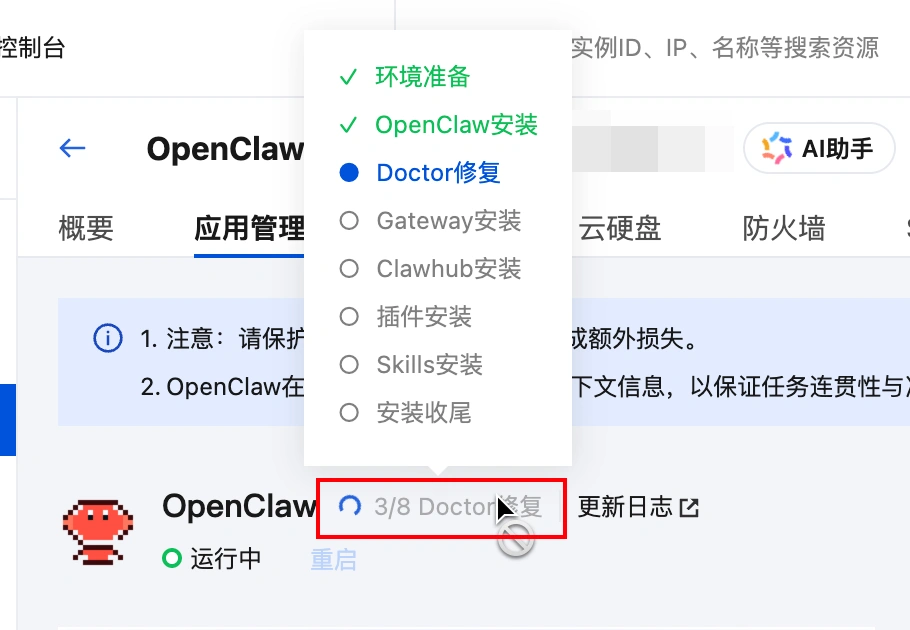
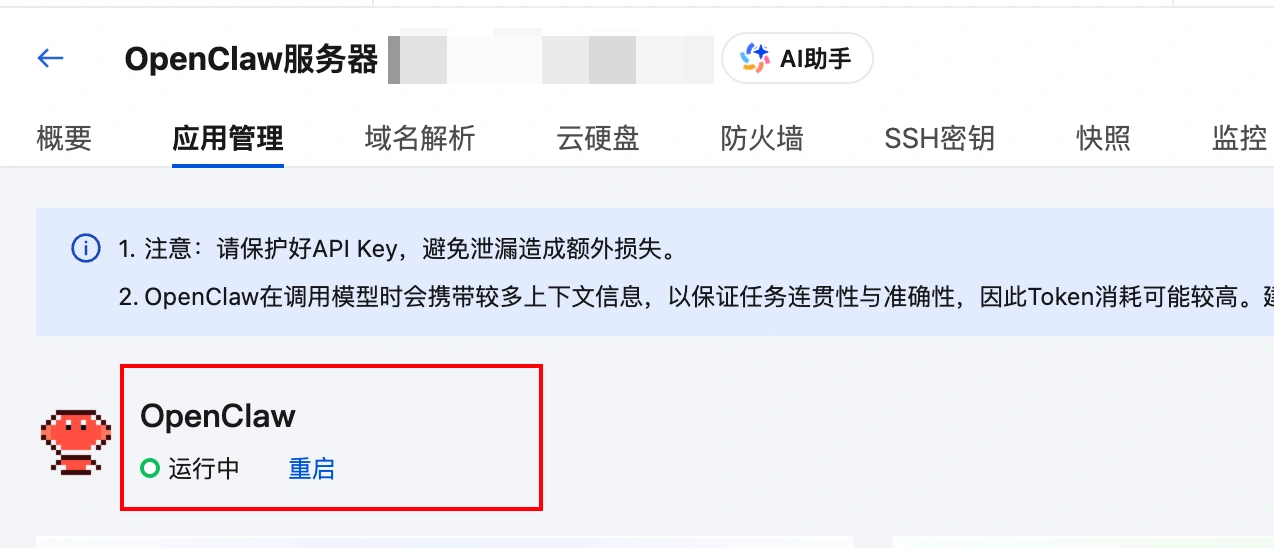
After starting the update, you can move the mouse to the indicated position to view the update progress:
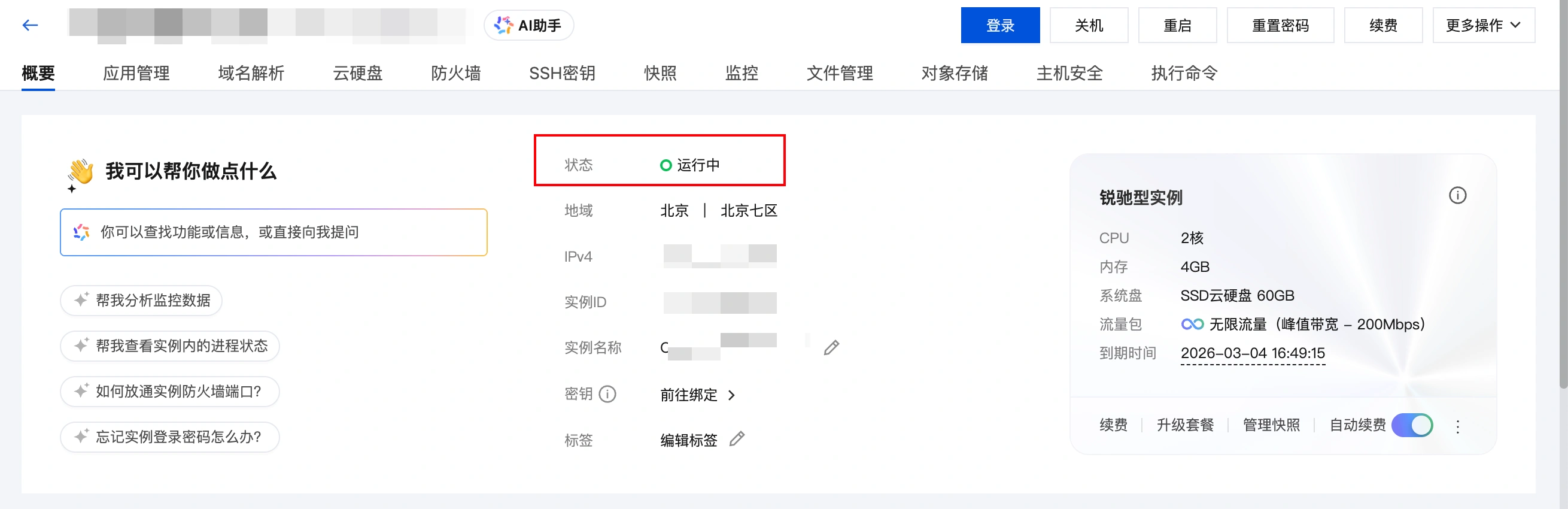
After the update is complete, the one-click update button in the configuration panel will disappear, and you can then proceed with the next steps.
Method Two: Manual Update
You can also use reinstallation by reinstalling the system, update the OpenClaw application template currently deployed in the Lightweight Application Server Lighthouse to the latest version. However, please note that reinstalling the system will erase all data on the server disk. Therefore, before reinstalling, be sure to back up data such as OpenClaw's memory to facilitate recovery after the reinstallation.
Step One: Download the OpenClaw's memory to your local device
Description:If you believe the current OpenClaw memory does not need to be saved, you can skip this step and proceed directly with the system reinstallation.
The memory of OpenClaw is somewhat like a save file in a game; some can be cleared at any time, while others are very precious. Therefore, we recommend that you save these memories before reinstalling and reinject them after the reinstallation is complete, allowing the memories to be “reborn” in the new environment.
Typically, your OpenClaw saves valuable memories in two locations:
- Daily Log:
memory/YYYY-MM-DD.md - Long-term Memory:
MEMORY.md(if any)
These files, along with Skills and other content, are stored within the instance's workspace folder. Therefore, before reinstalling, our goal is: through Lighthouse's File Management Function, download the entire workspace folder to your local machine first.
draw attention to sth.
If your workspace size exceeds 500MB, it is recommended to refer to File Transfer Guide, and transfer via a method more suitable for large files.
- Log in to the Lighthouse console and navigate to the details page of the OpenClaw instance.
- Find and enter File Management Page:
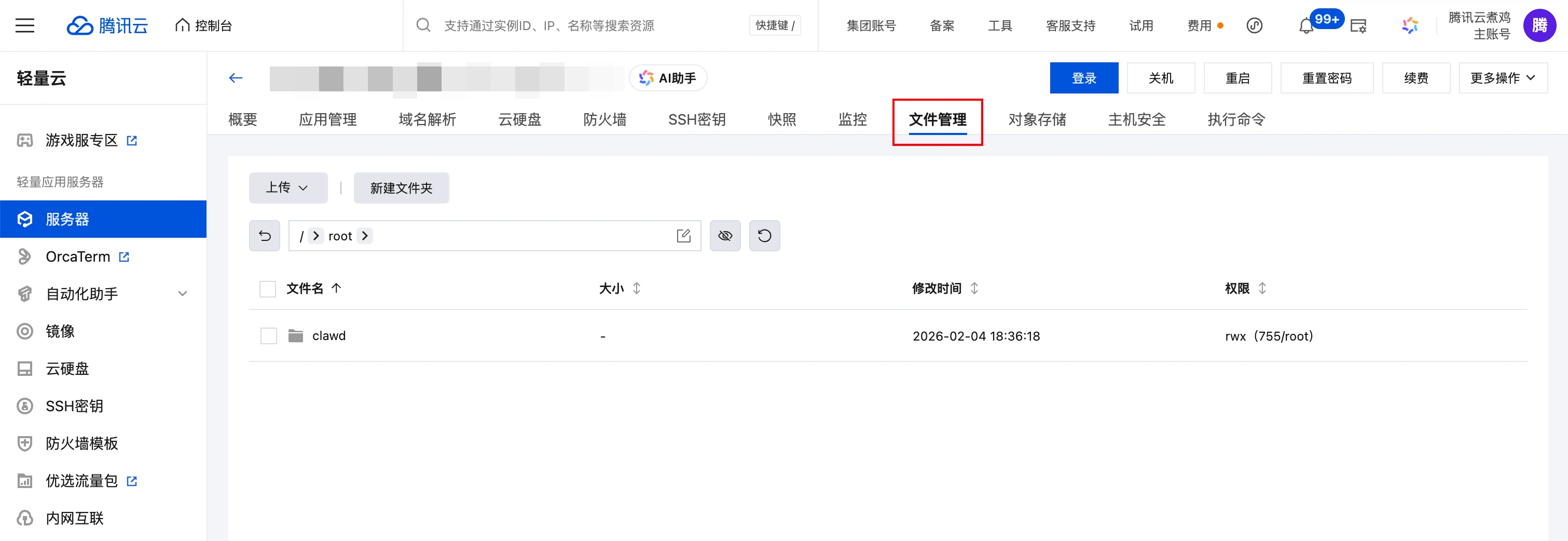
- In the path input box at the top of the page, paste the following path and press Enter:
/root/.openclaw/ - tick
workspacefolder, click the downloading button in the file management page. Lighthouse will automaticallyworkspaceCompress and package it, then download it to your local computer via your browser. Please keep this compressed file safe, as it will be needed for memory restoration later.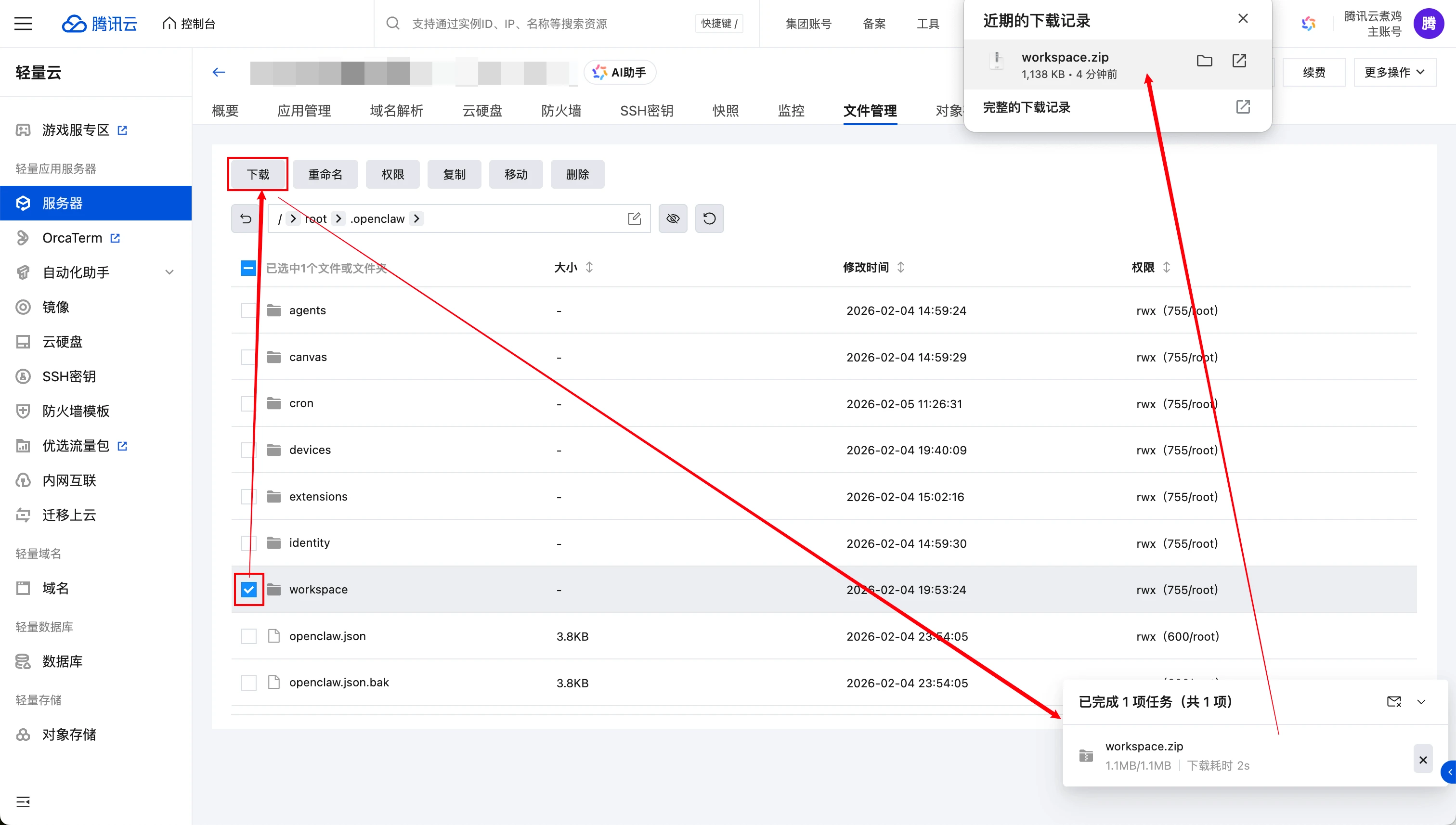
Step 2: Upgrade the application template version by reinstalling the system
This section will guide you through completing in Lighthouse reinstallation, thereby completing the upgrade of the OpenClaw application template.
take note of
During the reinstallation process, the system will automatically shut down forcefully. After reinstallation is complete, all data on the instance's system disk will be cleared and restored to its initial state. This operation is irreversible, so please proceed with caution!
- Enter the Lighthouse instance list or instance details page, find and click through “···” or “More Actions” reinstallation, enter the reinstall system page:
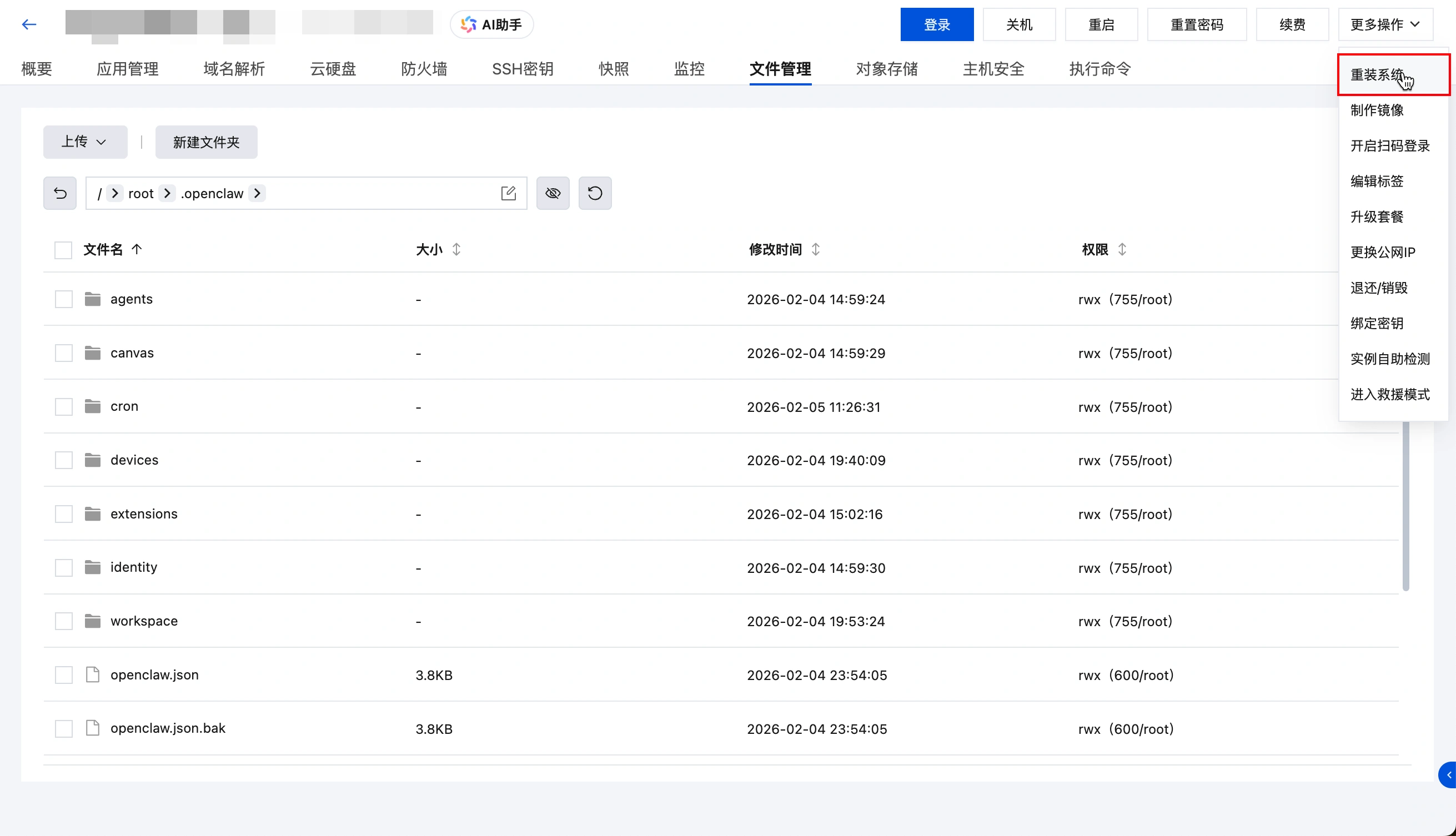
- On the reinstall system page, select in order:Application Template > AI Agent > OpenClaw, login credentials can temporarily choose “Set after reinstall”.
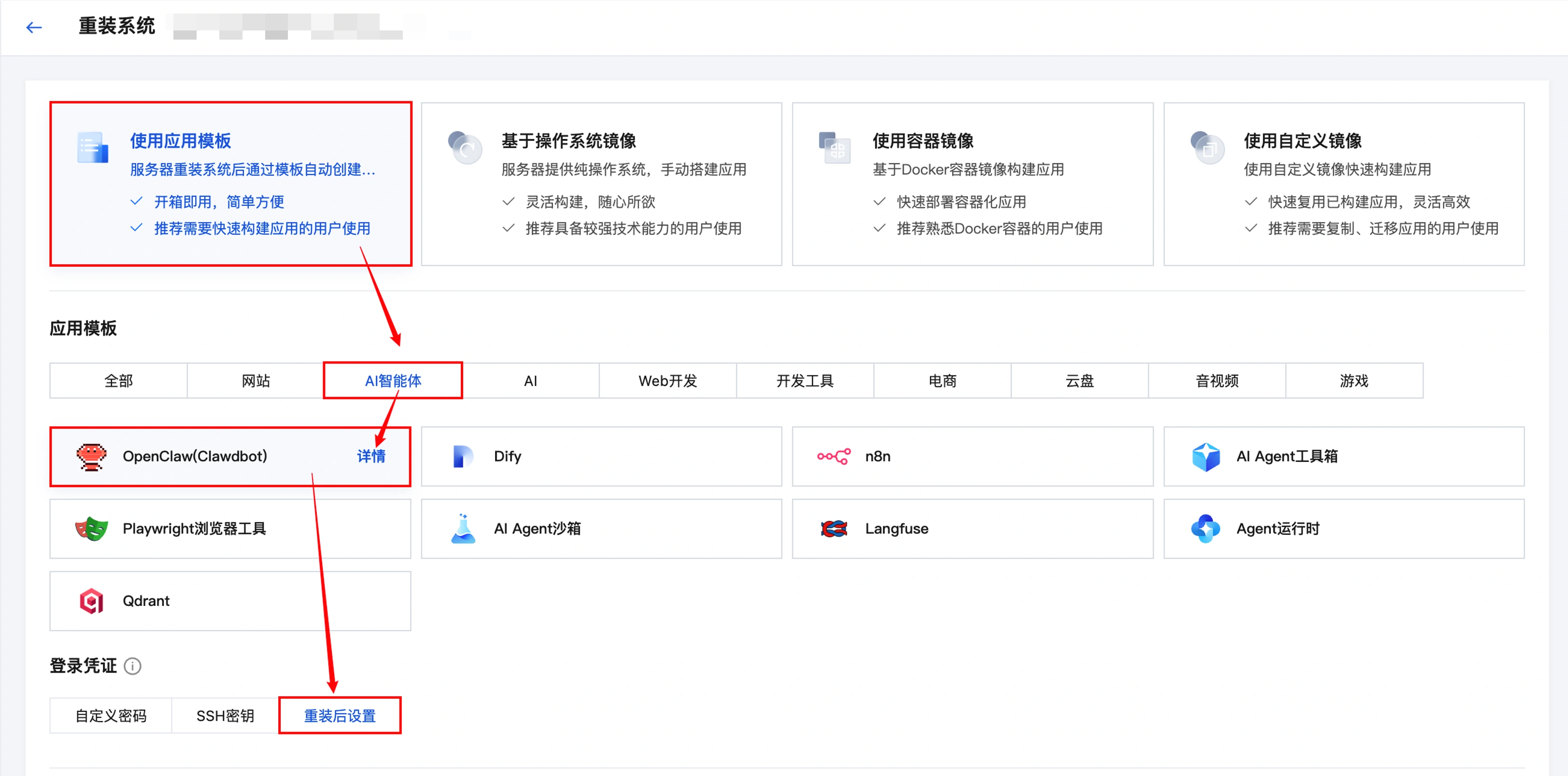
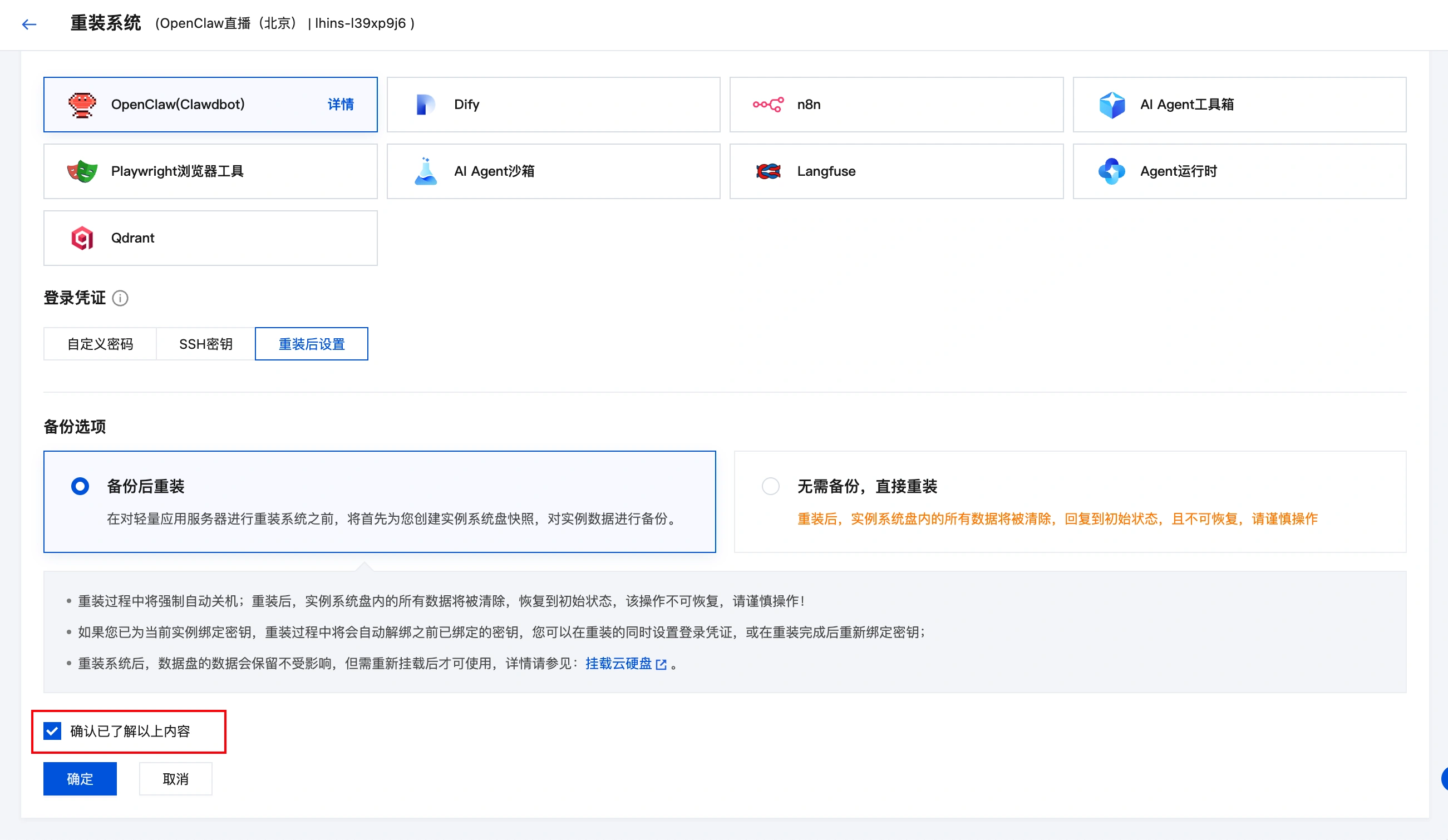
- Scroll down the page and select the backup option based on your actual situation:Here, backup is performed based on the Lighthouse snapshot capability, which completely preserves all data on the instance's system disk at a specific moment. If restoration is needed later, the instance will be reverted to the state it was in when the snapshot was created.It is generally recommended to choose Reinstall after backup, ensuring maximum recoverability of data within the current instance. If you have confirmed that the current data can be completely discarded, you may also choose No backup, reinstall directly。
- At the bottom of the page, check the box for “Confirm that you have understood the above content”, and click recognizeWait a moment, and when the instance status changes back to Running When it indicates that the reinstallation is complete.
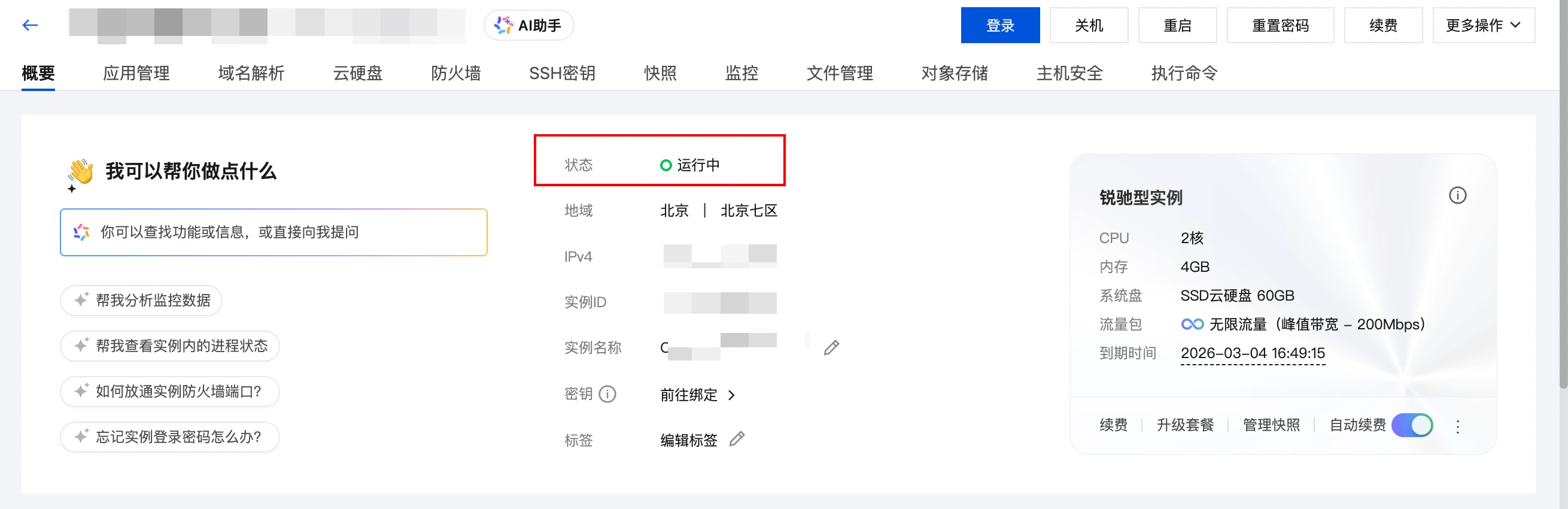
After the reinstallation is complete, go to the instance's Firewall configuration page to check if port 18789 is open.
Step 3: Restore memory for OpenClaw
draw attention to sth.
If your workspace size exceeds 500MB, it is recommended to refer to File Transfer Guide, use a method more suitable for large files for uploading.
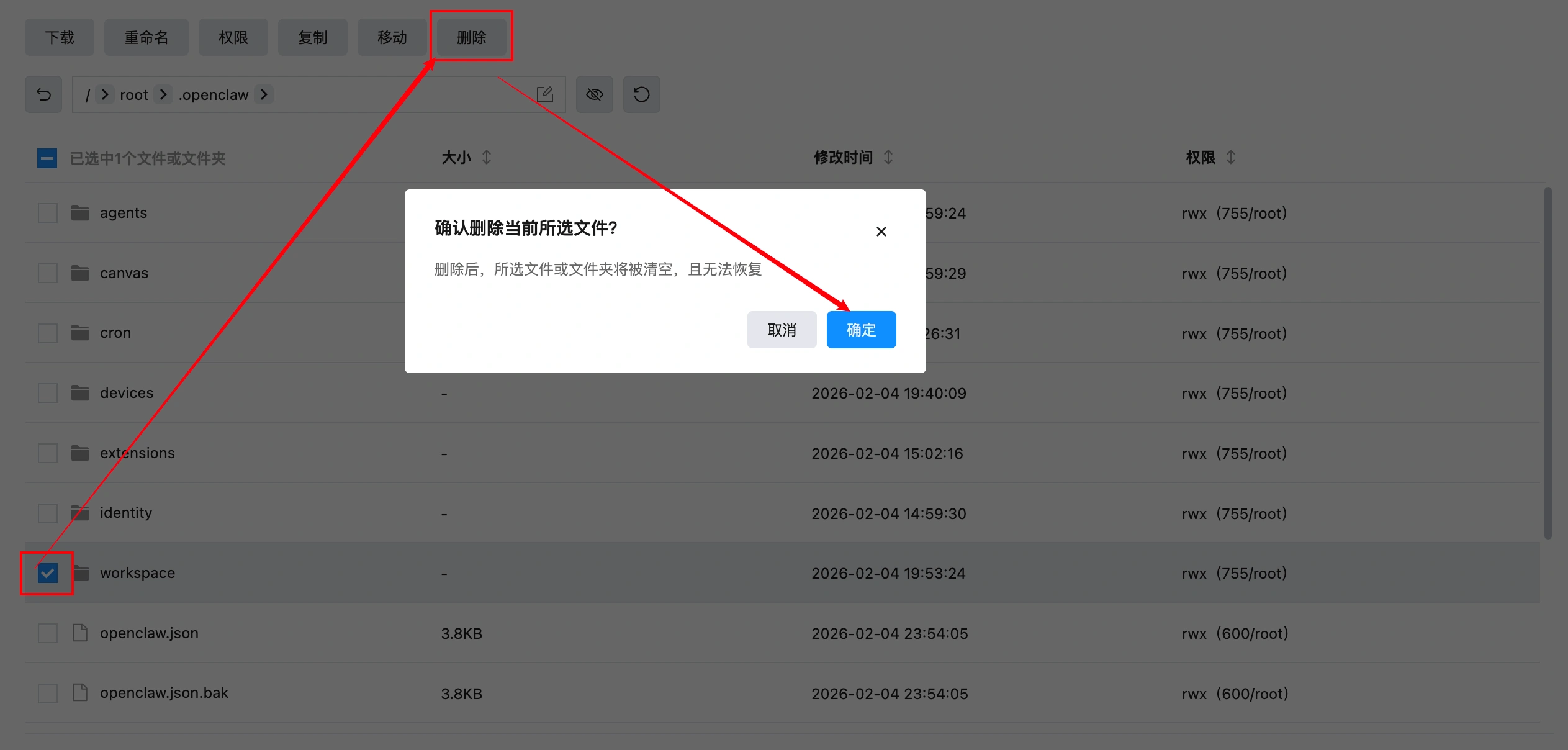
- log in Lighthouse ConsoleEnter the server details page, File Management tab, enter in the path input box:
/root/.openclaw/- localize to
workspacefolder, check and click removingto clear the current blank or default workspace:
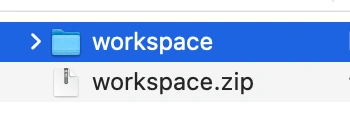
- Return to the local computer and first extract the workspace archive saved during the “Download OpenClaw's memory to local” step:
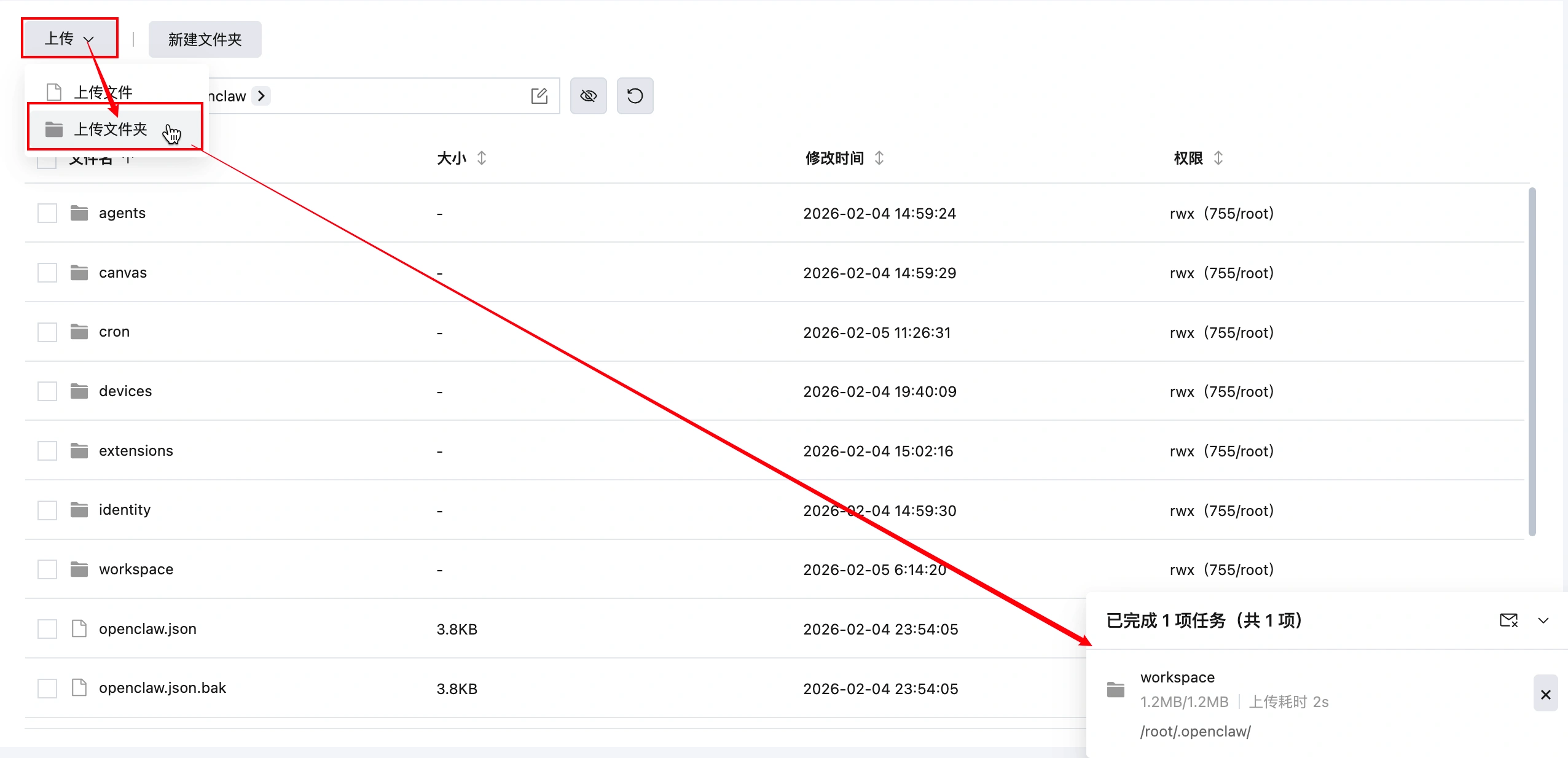
- Return to the Lighthouse file management page, select Upload > Upload FolderUpload the extracted
workspacefolder to/root/.openclaw/directory:
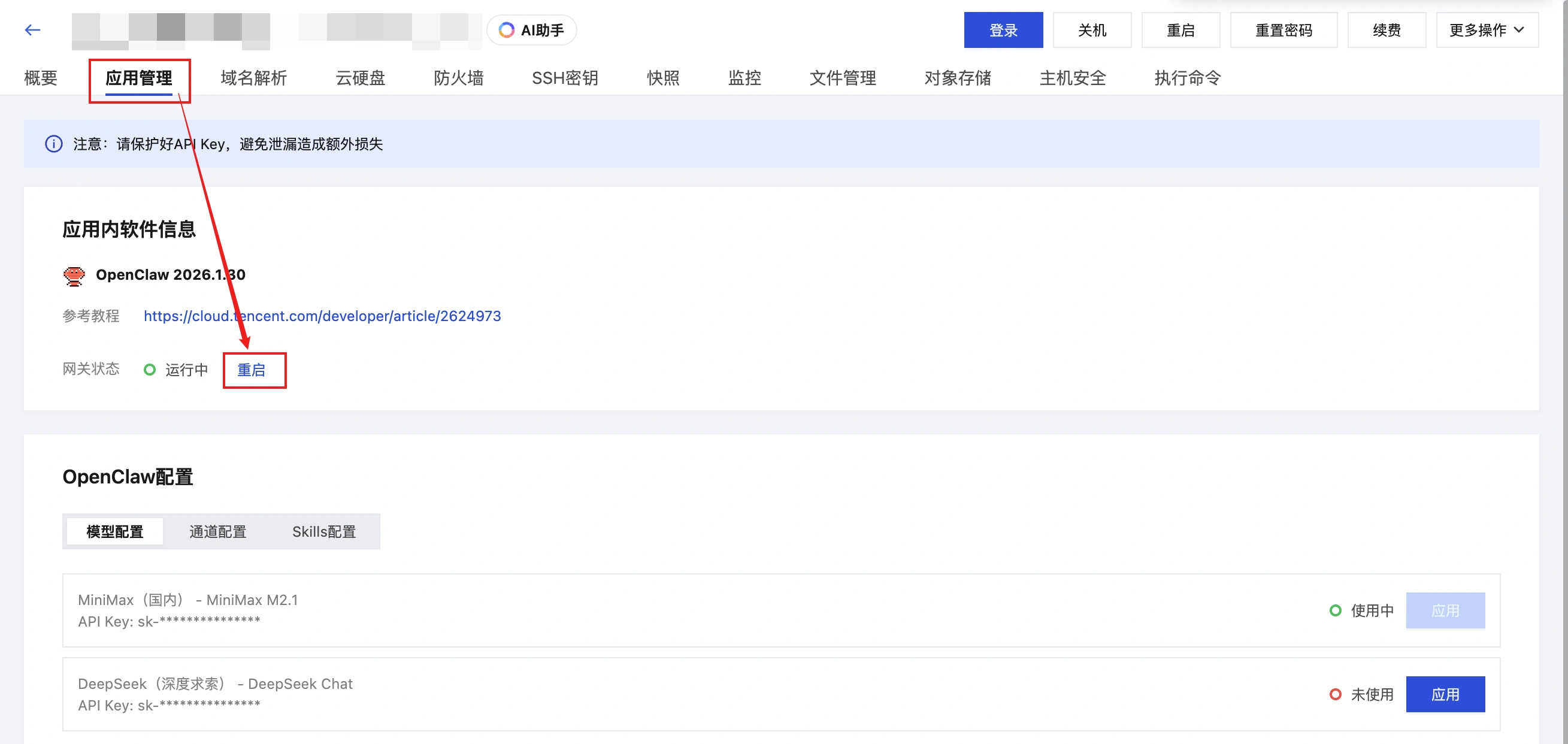
- After uploading, go to the OpenClaw application management page, click the Restart button to reload the workspace for the gateway:
Step 4: Verify Memory Recovery Effect
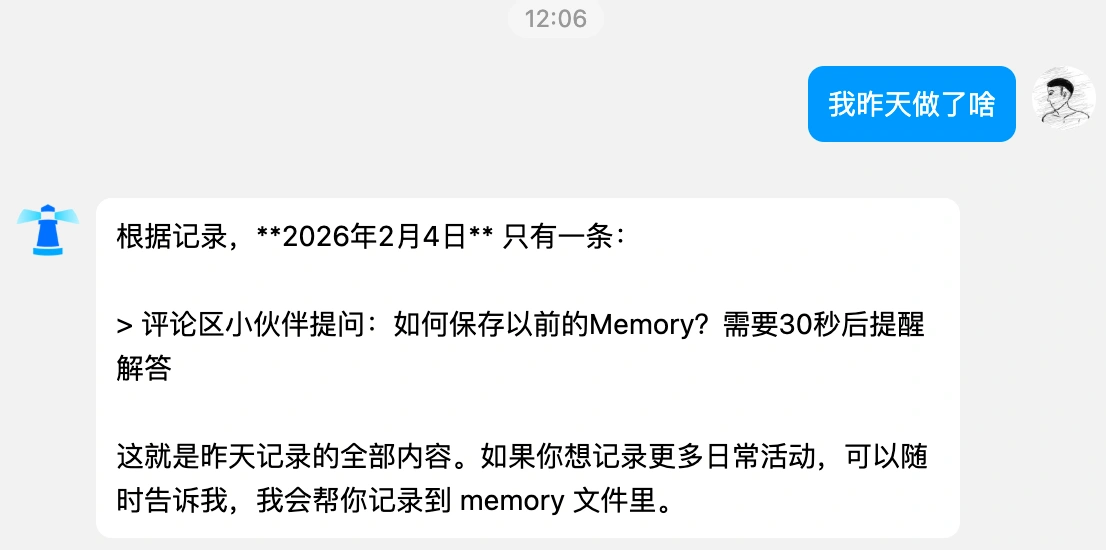
After completing the above steps, you can return to the actual session window (using QQ Bot as an example here) and ask a memory-related question to verify whether the reinstalled OpenClaw has successfully “inherited” the previous memory.
4. What to Do Next
- Haven't Purchased a Host Yet?View Recommended Tencent Cloud China OpenClaw Host Activities
- Say Goodbye to Cumbersome Configuration: A One-Click Deployment Guide for OpenClaw on Tencent Cloud
- Tencent Cloud OpenClaw A Complete Guide to Accessing QQ Bots: From 0 to Chattable
- Tencent Cloud OpenClaw Access WeChat Bot Practical Guide
 English
  English (UK)
  Acehnese
  Afrikaans
  Shqip
Shqip  Հայերեն
  অসমীয়া
  Aymara
  Azərbaycan dili
  Bashkir
  Euskara
  Беларуская мова
  বাংলা
বাংলা  Bhojpuri
  Bosanski
  Български
  Català
  Cebuano
  Hrvatski
  Čeština
  Dansk
Dansk  Dari
Dari  Nederlands
  Esperanto
  Eesti
Eesti  Suomi
Suomi  Français du Canada
  Galego
  ქართული
  Ελληνικά
  Guarani
  ગુજરાતી
  Haitian Creole
  Hausa
Hausa  עִבְרִית
  हिन्दी
  Magyar
  Igbo
Igbo  Bahasa Indonesia
  Italiano
  Basa Jawa
  Kapampangan
  Қазақ тілі
  Konkani
  Kurdish (Kurmanji)
  كوردی
كوردی  Кыргызча
  Latviešu valoda
  Lingala
  Lietuvių kalba
  Lombard
  Македонски јазик
  Maithili
  Malagasy
  Bahasa Melayu
  मराठी
मराठी  Монгол
  العربية المغربية
  ဗမာစာ
ဗမာစာ  नेपाली
  Pangasinan
  پښتو
پښتو  فارسی
فارسی  (فارسی (افغانستان
  Polski
  Português do Brasil
  Português
  Quechua
  Română
  Српски језик
  Sicilian
  Slovenčina
  Slovenščina
  گؤنئی آذربایجان
  Español de México
  Sundanese
  Kiswahili
  Svenska
  Tagalog
  Tajik
Tajik  தமிழ்
தமிழ்  Татар теле
  తెలుగు
  ไทย
ไทย  Tsonga
  Tswana
  Türkçe
  Turkmen
  Українська
  اردو
اردو  O‘zbekcha
  Tiếng Việt
  Wolof
Wolof  Xhosa
Xhosa  English (Australia)
  English (Canada)
  English (New Zealand)
  English (South Africa)
  Aragonés
  Nederlands (België)
  Breton
  አማርኛ
አማርኛ  ភាសាខ្មែរ
  മലയാളം
  هزاره گی
  Maori
Maori  Hornjoserbšćina
  ئۇيغۇرچە
  བོད་ཡིག
  தமிழ்
தமிழ்  Reo Tahiti
  Español de Venezuela
  Español de Uruguay
  Español de Puerto Rico
  Español de Perú
  Español de Ecuador
  Español de Costa Rica
  Maltese
  Íslenska
  Friulian
  ಕನ್ನಡ
ಕನ್ನಡ  Frysk
Frysk  Luxembourgish
  ພາສາລາວ
  Latin
Latin  Norsk bokmål
  རྫོང་ཁ
  Сахалыы
  Deutsch (Österreich)
  Taqbaylit
  Norsk nynorsk
  Occitan
  ਪੰਜਾਬੀ
  Português de Angola
  Gàidhlig
  Português (AO90)
  Irish
Irish  Sanskrit
  سرائیکی
  سنڌي
سنڌي  Dolnoserbšćina
  Ruáinga
  Español de Argentina
  Español de Chile
  Deutsch (Schweiz, Du)
  Ślōnskŏ gŏdka
  සිංහල
සිංහල  Español de República Dominicana
  Español de Guatemala
  Français de Belgique
  Español de Colombia
  Cymraeg