










If you have deployed OpenClaw on a cloud server, then the overall process of accessing QQ is actually not complicated: first go to the QQ open platform to create a QQ robot, get the AppID 和 AppSecretIn the end, you can go back to the management panel of OpenClaw on the cloud to complete the model configuration and channel configuration, and finally verify whether the robot can reply normally in QQ. Tencent cloud this set of access to go to the visualisation panel, do not need you to run additional native commands.
1. Have these things ready before you start.
Before you make it official, make sure you have the following in place:
- Have a real-name QQ account.
- The OpenClaw has been deployed in the Lighthouse Lightweight Application Server.
- If your OpenClaw instance was created in an earlier version, it is best to update to the newer application version before continuing with the configuration.
- If you intend to use QQ channel for a long time, give priority to domestic servers and model services that can be called stably.
2. Register and login to QQ Open Platform
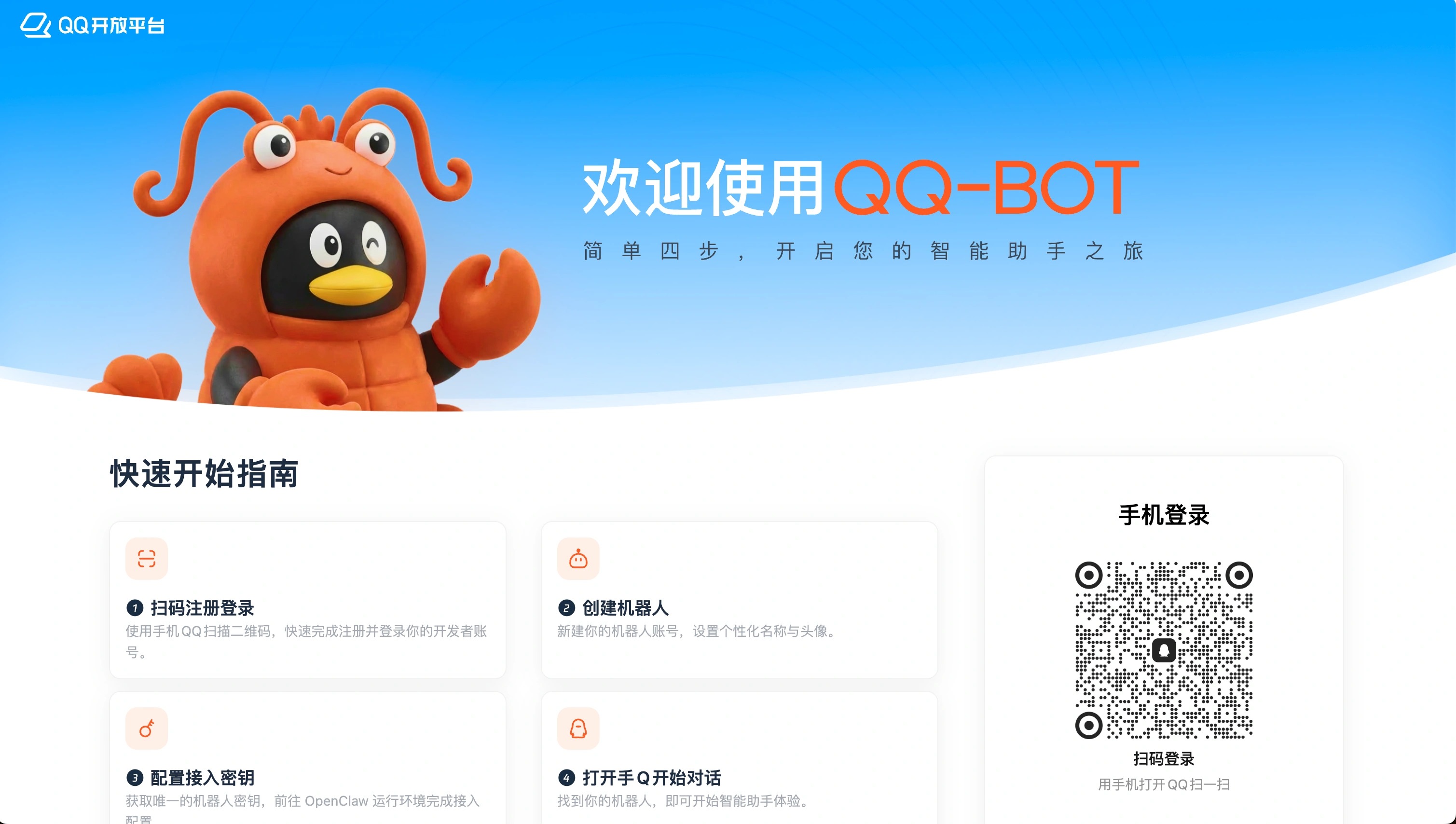
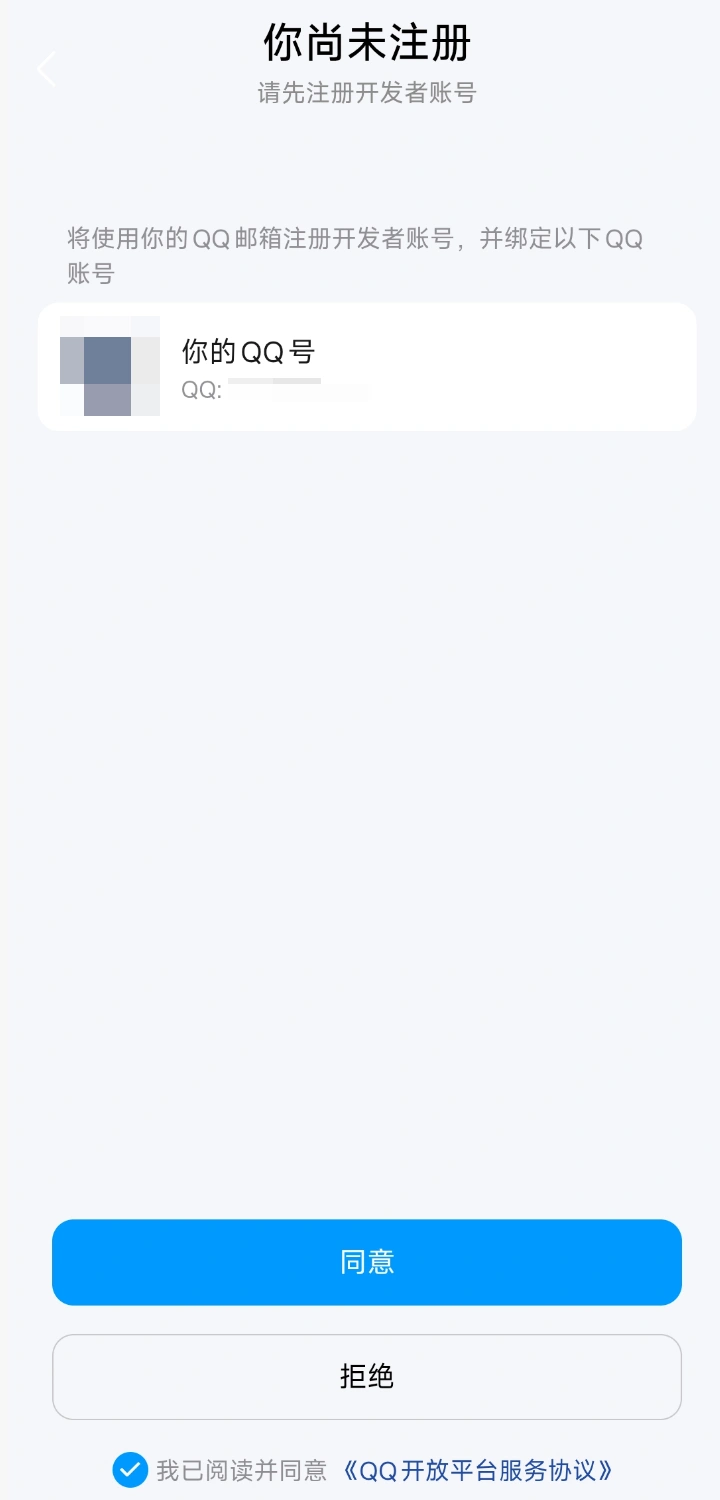
pre-entry QQ Open PlatformIf you have not registered before, the platform will automatically complete the registration for you and bind your current QQ account to the open platform. If you have not registered before, after scanning the code and authorisation, the platform will automatically help you complete the registration and bind your current QQ account to the open platform. After that, you will enter the management page of the QQ robot.
3. Create your QQ bot
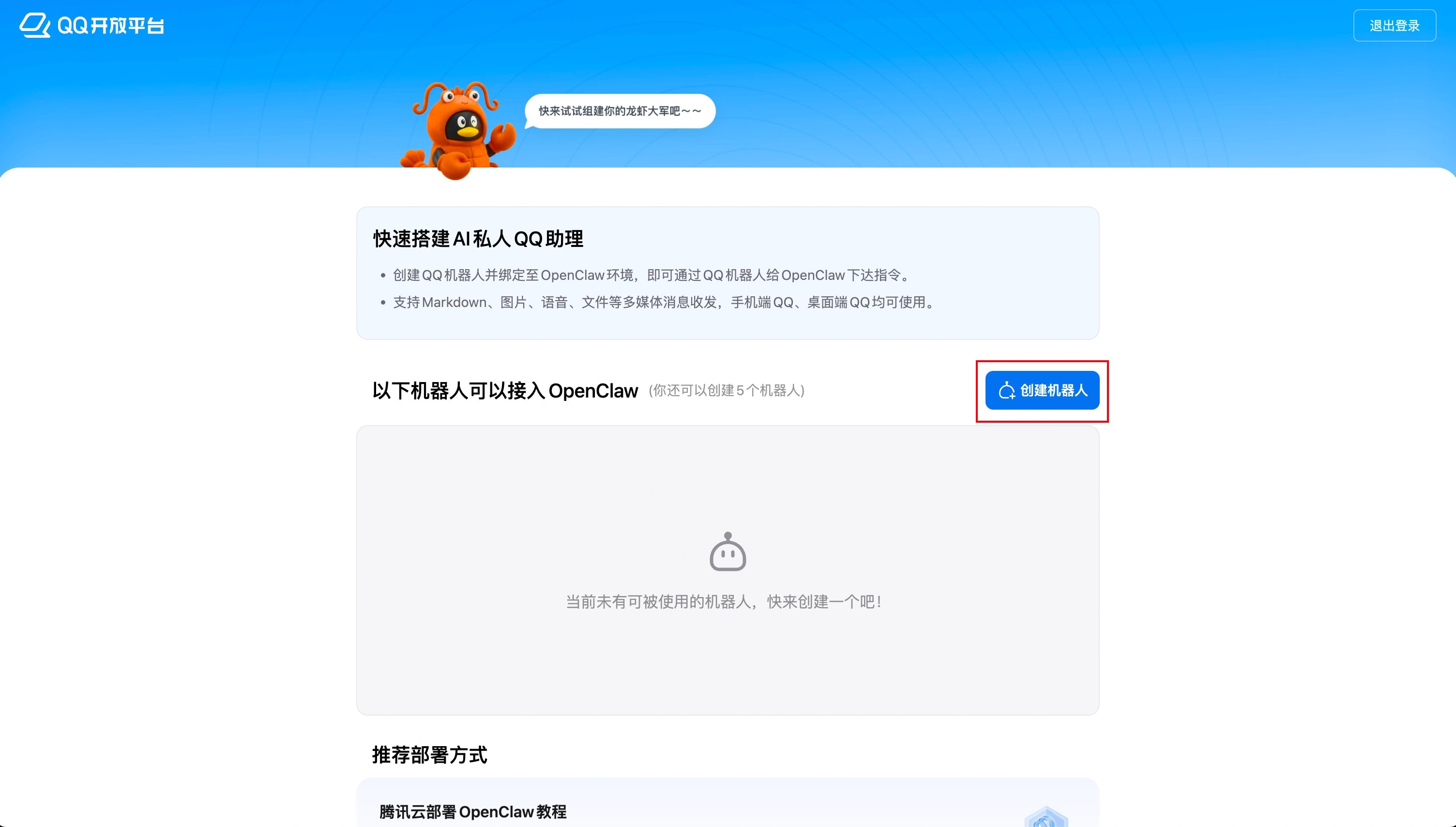
After entering the QQ robot page, click on “Create a robot”, according to the page prompts to create a new robot. After the creation, the system will generate two very critical parameters:
AppIDAppSecret
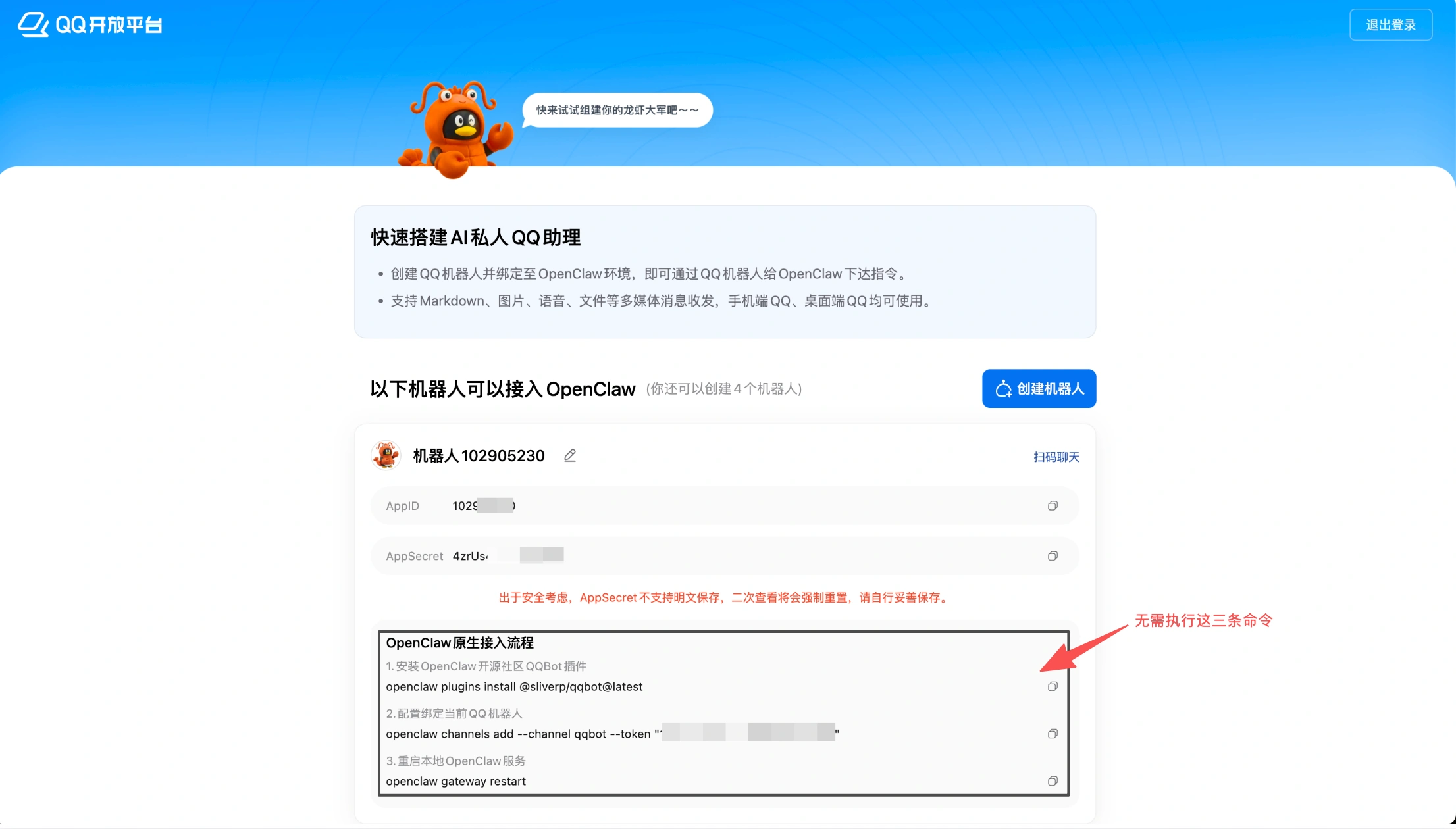
Copy and save these two values immediately, as they must be used later when configuring OpenClaw. In particular, note that theAppSecret It is usually not displayed in plaintext for long periods of time for security reasons, and may need to be reset when viewed later, so be sure to save it properly the first time it appears.
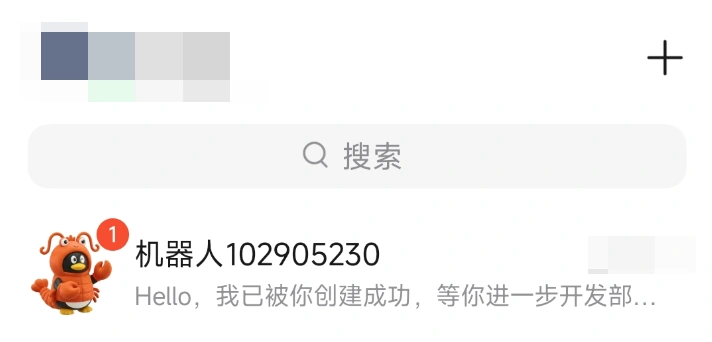
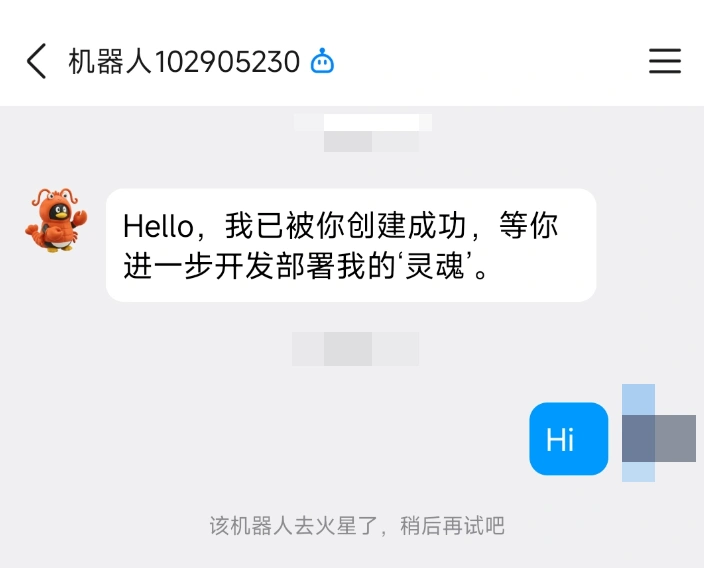
Once created, you can usually see the bot in the message list in the QQ client. However, at this point it usually won't work properly because it's only “built” and not actually connected to your OpenClaw instance. As mentioned in the original article, if you haven't finished configuring the cloud yet, you may see something like “The bot has gone to Mars, try again later” when talking to the bot.
4. Access to the OpenClaw administration page
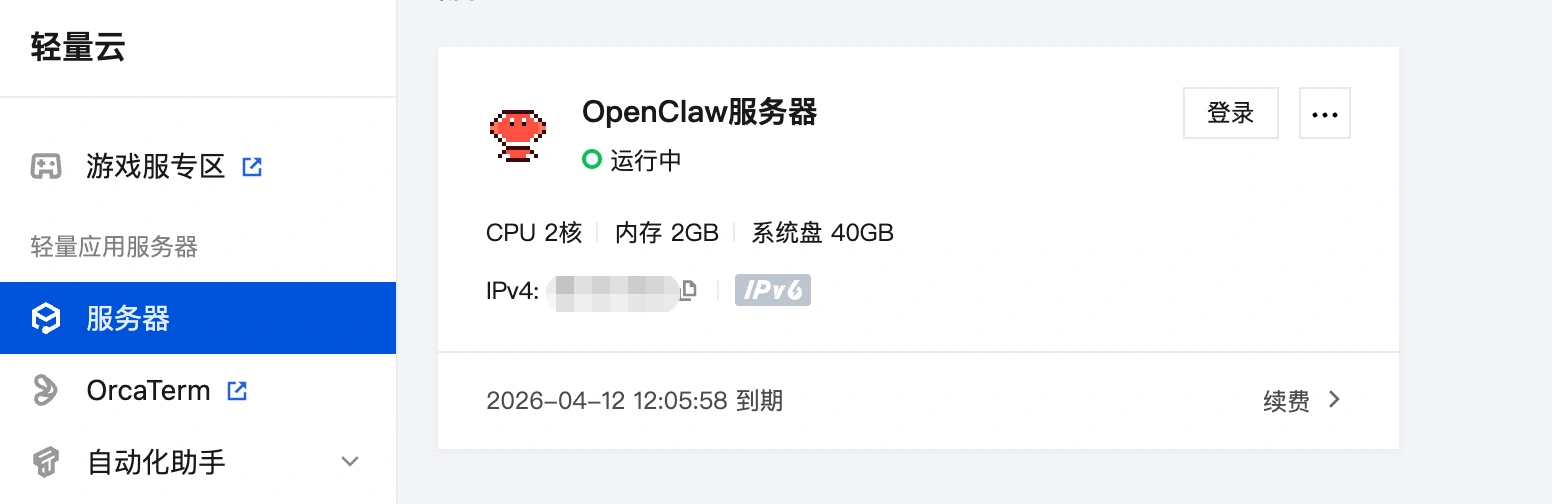
Next, go back to the Tencent Cloud console, find the Lighthouse instance where you deployed OpenClaw, enter the instance details, and then enter the “Application Management” page. Then go to the "Application Management" page. The model settings and QQ channel settings will be done here.
5. Configure the model first
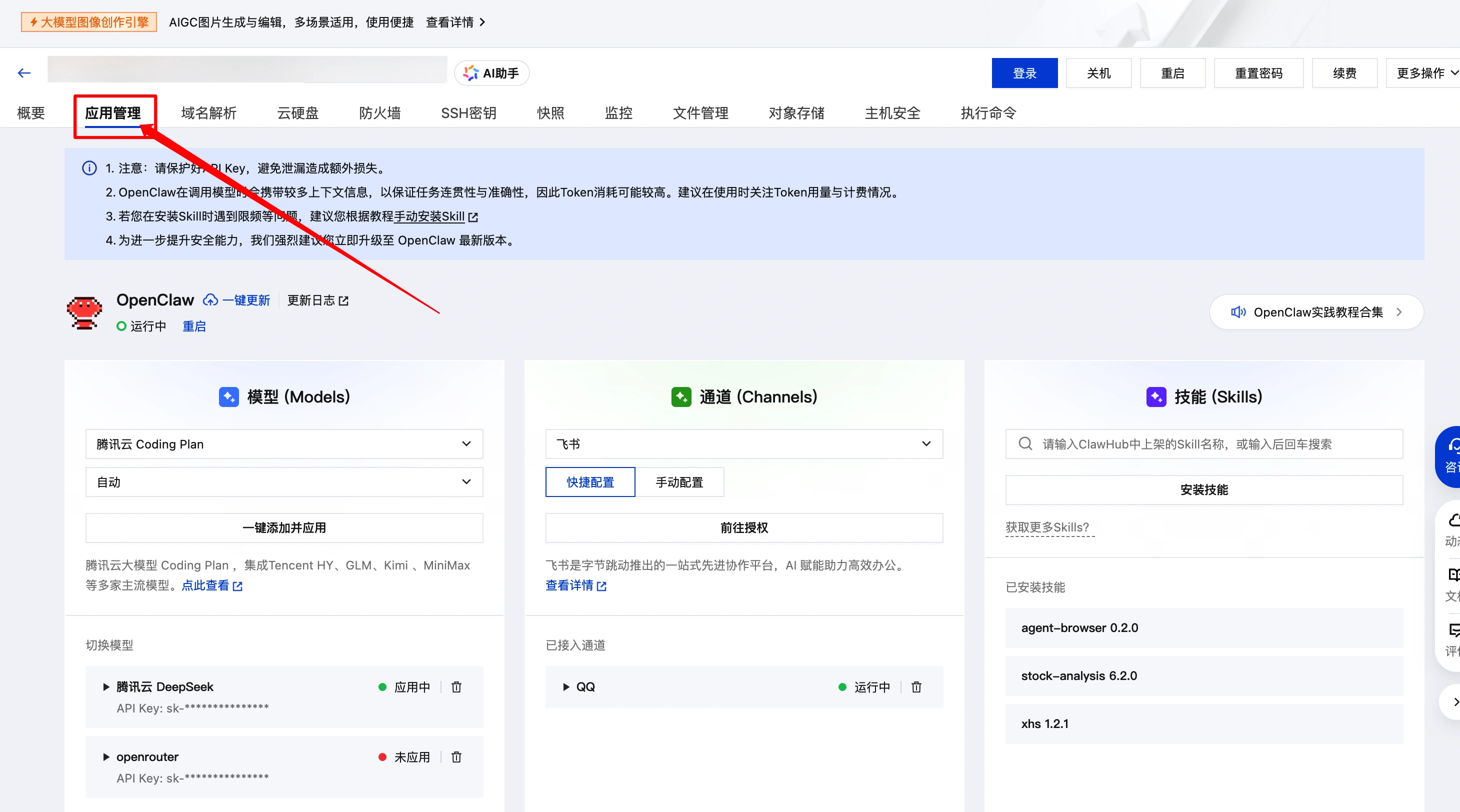
QQ is just the entrance for messages, and it is the model you configure for OpenClaw that is really responsible for understanding and replying to the content. So before connecting to QQ, make sure that the model API Key has been filled correctly and the model itself can be called normally.
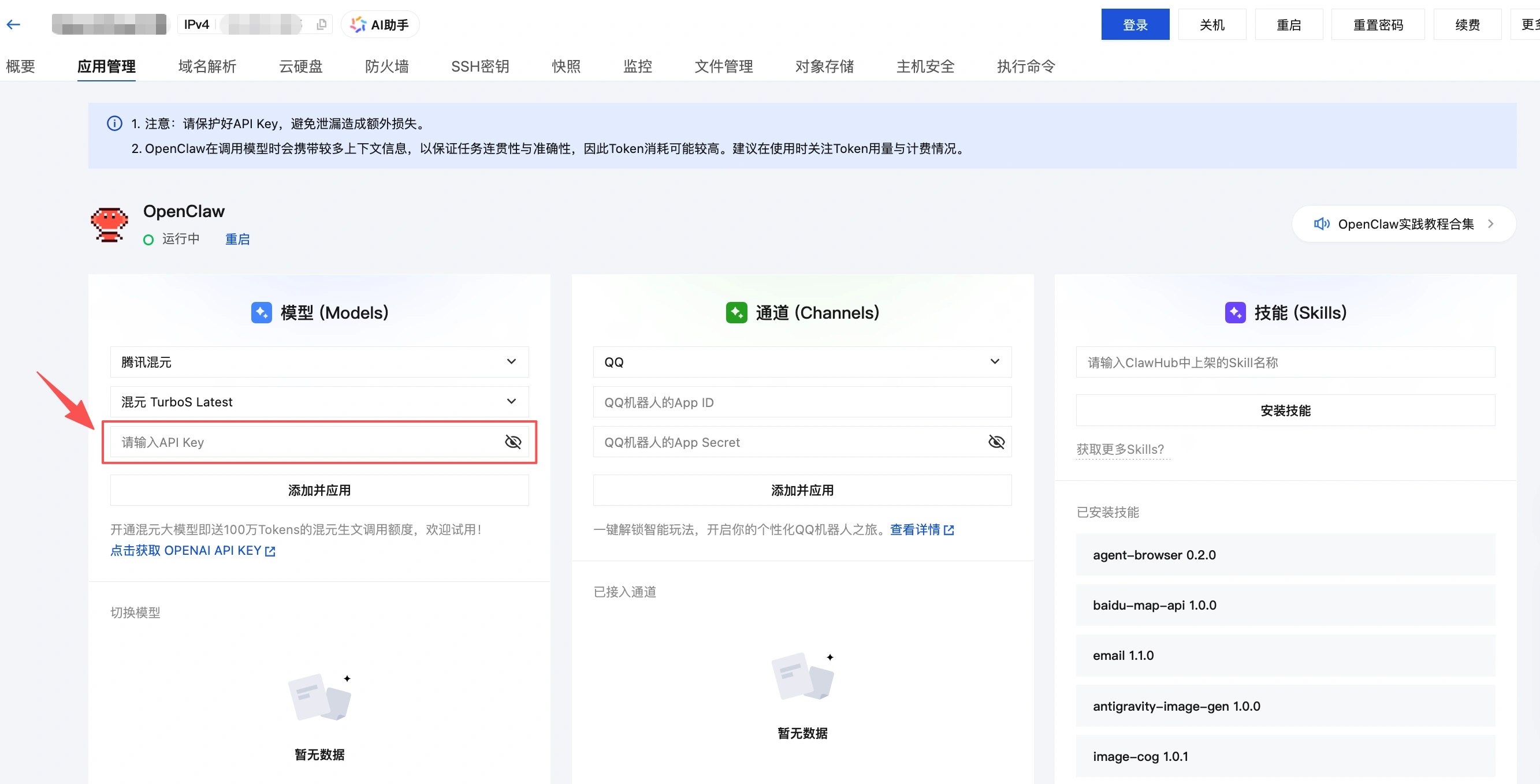
This is very important, because many people think that “QQ doesn't reply” is because the channel is not configured properly, but in fact, one of the more common reasons is that the model is not configured, the key is filled in incorrectly, or the model service itself is not available. The original article also reminds us that model configuration is a necessary step.View Models Popular Models Registered Address。
6. Configuring a QQ channel
Once the model is confirmed to be OK, go ahead and do the channel configuration.
On the Application Management screen, locate the Channel Configuration area, add a new QQ channel, and then put the AppID 和 AppSecret Fill it in, save and apply the configuration. After the system finishes processing, the page appears to save successfully, which means that the QQ channel has been officially connected to OpenClaw.
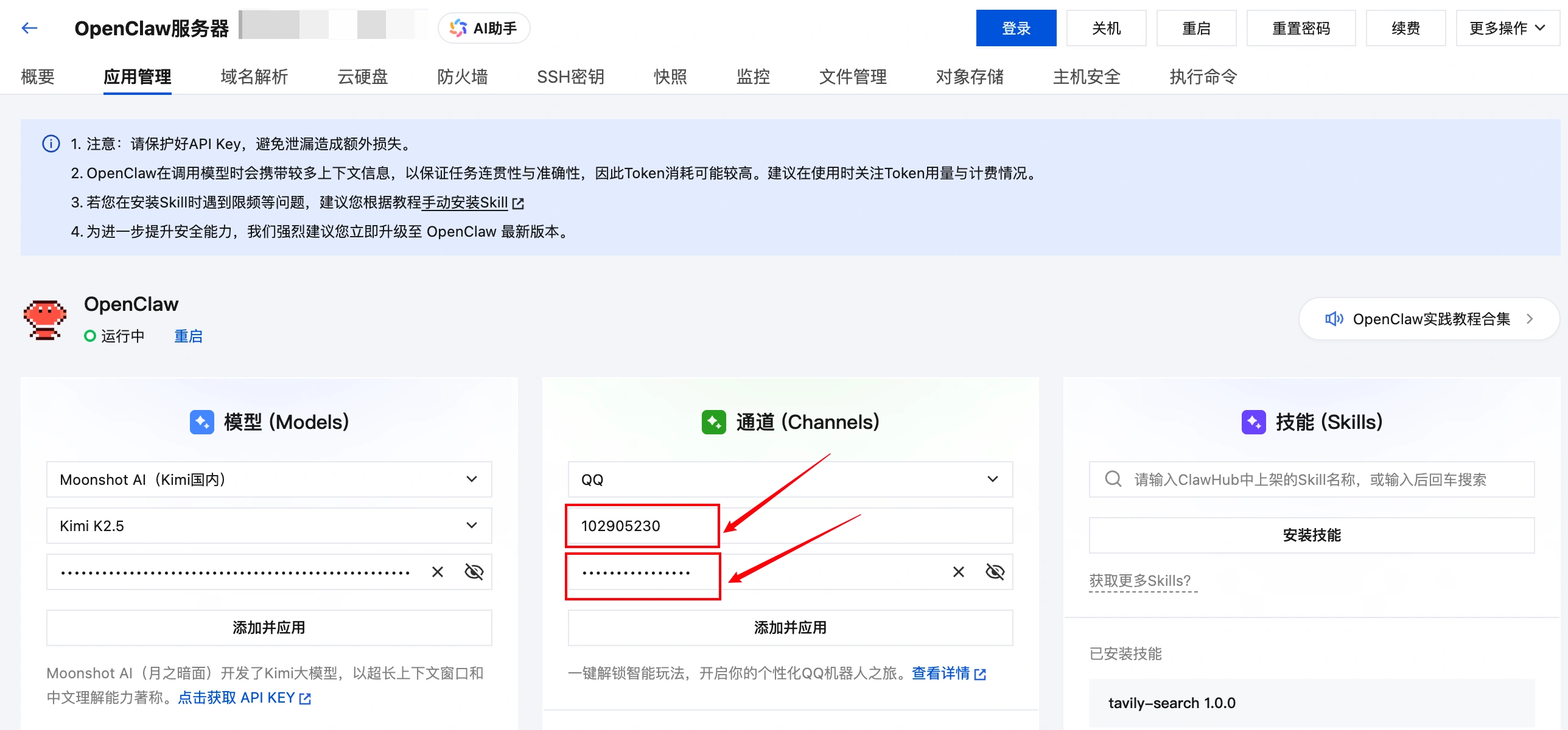
If you fill in the wrong parameters in this step, the most typical phenomenon is that after you go back to QQ, the robot still can't answer normally, or continue to prompt anomalous status. So once you fail, the first thing you should check is whether the two values have been copied incorrectly, whether there is any omission, and whether you have filled in the old Secret.
7. Go back to QQ to test whether the access is successful
After completing the model configuration and QQ channel configuration, you can go back to your mobile phone QQ or computer QQ, and directly send messages to the robot for testing. As long as it can understand and reply normally like the AI assistant, it means that the whole link has been opened.
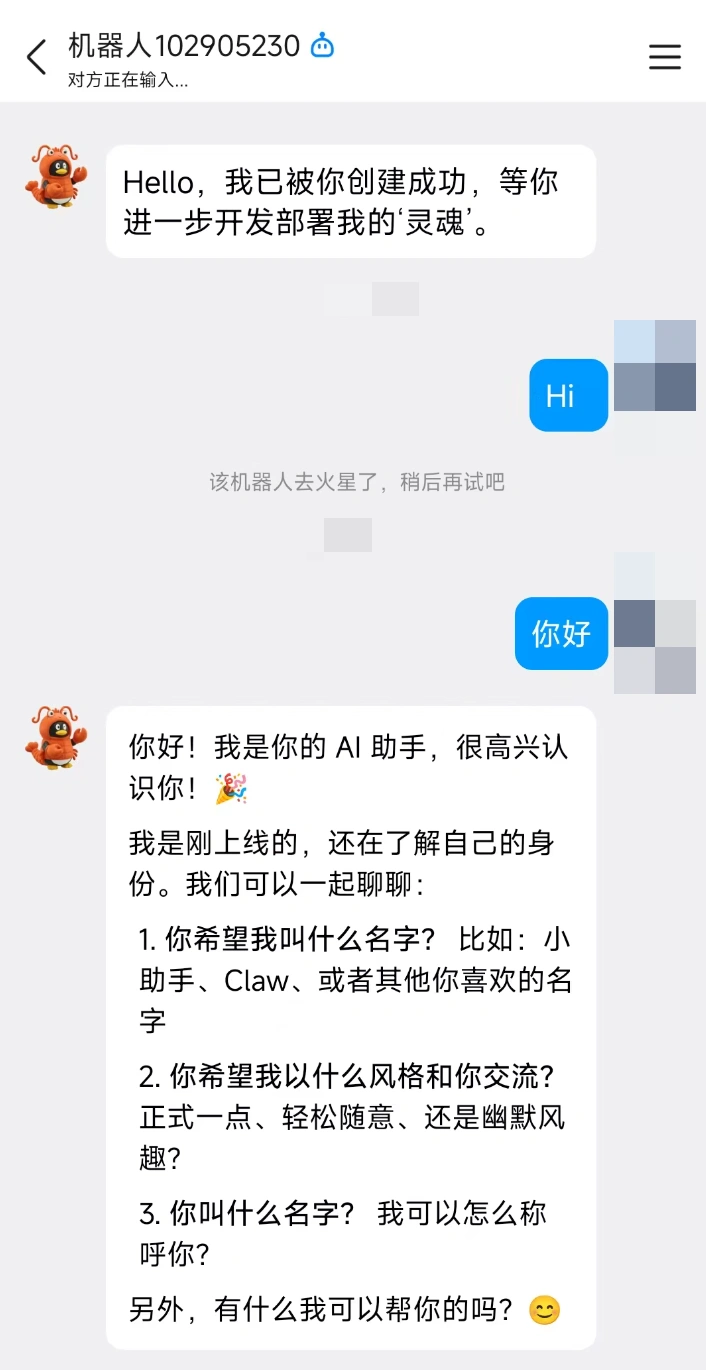
Here is a detail to note: it is not recommended to pull this QQ robot directly into the group to do interaction, at least in the current scenario, the priority to the single chat way to test and use will be more secure.
8. What can be done after successful access
When connected to QQ, bots can do more than just send and receive ordinary text. The range of capabilities given in the original article also includes:
- Receive text
- Receive pictures
- Receipt of documents
- Reply text
- Reply to the picture
- Markdown Format Response
- unsolicited message
- voice message
- Response to the document
However, “history message quoting” is currently not supported.
Another key reminder is that QQ is just the channel, and the ability to actually recognise the image, generate it, and process the file still depends on the capabilities of the model behind you.
For example, if you want the robot to look at pictures, you have to configure the OpenClaw with models that support visual understanding; if you want it to produce pictures, you have to pick up models that support image generation.
9. The two most common types of problems
9.1 Robot alerts are abnormal and no dialogue is possible
If the bot responds with something like “Going to Mars, try again later”, check the following two items first:
- Is it possible that you didn't fill in OpenClaw for the QQ bot at all?
AppID和AppSecret - Is it filled in incorrectly
AppID或AppSecret
9.2. It seems to be connected, but the bot just won't answer the message.
This is usually not a problem with the QQ channel itself, but an abnormality in the model configuration. For example, if the API Key is not properly configured, the model is not available, or the model call fails, it may cause the robot to receive the message but not reply. The solution is to go back to the model configuration page of OpenClaw and recheck the model access status.
10. Summary
Connecting the OpenClaw to QQ is a four-step process:
- Deploy OpenClaw
- Create a bot on QQ Open Platform
- preserve
AppID和AppSecret - Model Configuration and QQ Channel Configuration in the Cloud Panel
As long as these four steps are done correctly, basically you can successfully turn the QQ robot into your OpenClaw dialogue portal. Later, whether it is to do personal assistant, document processing, graphic Q&A, or timed reminder, are on this basis to continue to expand.
 English (UK)
  Acehnese
  Afrikaans
  Shqip
Shqip  Հայերեն
  অসমীয়া
  Aymara
  Azərbaycan dili
  Bashkir
  Euskara
  Беларуская мова
  বাংলা
বাংলা  Bhojpuri
  Bosanski
  Български
  Català
  Cebuano
  Hrvatski
  Čeština
  Dansk
Dansk  Dari
Dari  Nederlands
  Esperanto
  Eesti
Eesti  Suomi
Suomi  Français du Canada
  Galego
  ქართული
  Ελληνικά
  Guarani
  ગુજરાતી
  Haitian Creole
  Hausa
Hausa  עִבְרִית
  हिन्दी
  Magyar
  Igbo
Igbo  Bahasa Indonesia
  Italiano
  Basa Jawa
  Kapampangan
  Қазақ тілі
  Konkani
  Kurdish (Kurmanji)
  كوردی
كوردی  Кыргызча
  Latviešu valoda
  Lingala
  Lietuvių kalba
  Lombard
  Македонски јазик
  Maithili
  Malagasy
  Bahasa Melayu
  मराठी
मराठी  Монгол
  العربية المغربية
  ဗမာစာ
ဗမာစာ  नेपाली
  Pangasinan
  پښتو
پښتو  فارسی
فارسی  (فارسی (افغانستان
  Polski
  Português do Brasil
  Português
  Quechua
  Română
  Српски језик
  Sicilian
  Slovenčina
  Slovenščina
  گؤنئی آذربایجان
  Español de México
  Sundanese
  Kiswahili
  Svenska
  Tagalog
  Tajik
Tajik  தமிழ்
தமிழ்  Татар теле
  తెలుగు
  ไทย
ไทย  Tsonga
  Tswana
  Türkçe
  Turkmen
  Українська
  اردو
اردو  O‘zbekcha
  Tiếng Việt
  Wolof
Wolof  Xhosa
Xhosa  English (Australia)
  English (Canada)
  English (New Zealand)
  English (South Africa)
  Aragonés
  Nederlands (België)
  Breton
  አማርኛ
አማርኛ  ភាសាខ្មែរ
  മലയാളം
  هزاره گی
  Maori
Maori  Hornjoserbšćina
  ئۇيغۇرچە
  བོད་ཡིག
  தமிழ்
தமிழ்  Reo Tahiti
  Español de Venezuela
  Español de Uruguay
  Español de Puerto Rico
  Español de Perú
  Español de Ecuador
  Español de Costa Rica
  Maltese
  Íslenska
  Friulian
  ಕನ್ನಡ
ಕನ್ನಡ  Frysk
Frysk  Luxembourgish
  ພາສາລາວ
  Latin
Latin  Norsk bokmål
  རྫོང་ཁ
  Сахалыы
  Deutsch (Österreich)
  Taqbaylit
  Norsk nynorsk
  Occitan
  ਪੰਜਾਬੀ
  Português de Angola
  Gàidhlig
  Português (AO90)
  Irish
Irish  Sanskrit
  سرائیکی
  سنڌي
سنڌي  Dolnoserbšćina
  Ruáinga
  Español de Argentina
  Español de Chile
  Deutsch (Schweiz, Du)
  Ślōnskŏ gŏdka
  සිංහල
සිංහල  Español de República Dominicana
  Español de Guatemala
  Français de Belgique
  Español de Colombia
  Cymraeg